
Knowledge Base & Document Management
The Knowledge Base → Documents section allows you to upload, index, review, and manage all documents stored inside your workspace. This includes PDFs and videos that can be converted into searchable knowledge for AskOn3.
1. Viewing Existing Documents
When you navigate to Knowledge Base → Documents, you will see a table listing all active documents within your workspace. Each row represents an item that has been uploaded, indexed, or prepared for AskOn3 use.
2. Adding a New Document
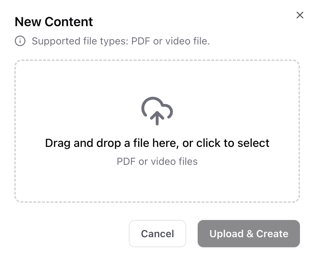
To upload new content:
Steps to Add a Document
-
Click the Add Content button in the top-right corner.
-
A “New Content” dialog will appear.
-
Either click the center of the dialog to browse files, or drag a PDF or video file into the window.
-
The system will begin uploading and preparing the content.
Accepted File Types
-
PDF documents
-
Video files
Preparing Documents for Upload
Before uploading:
-
Convert your document or PowerPoint slides into PDF format
-
Ensure the PDF has selectable text, not flattened or scanned text
-
Microsoft Office 365 includes Save as PDF, which preserves selectable text
Selectable text is required to produce accurate knowledge for AskOn3.
3. Previewing a Document
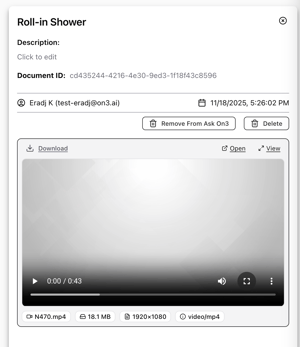
After uploading:
-
Click the document row.
-
A right-hand preview panel will slide out.
-
You can preview:
-
PDF documents
-
Videos
-
This preview allows you to confirm the correct file has been uploaded before indexing.
4. Indexing Documents into AskOn3
To make a document part of the AskOn3 knowledge base:
-
Open the preview panel
-
Click the orange "Add to AskOn3" button
-
The system will begin indexing the document
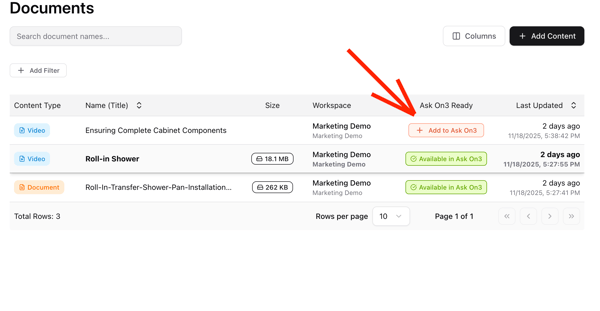
What Happens During Indexing
-
The system reads and processes all text
-
Knowledge entries are generated
-
Content becomes available to AskOn3
-
Mobile app users will also have access
Indexing Time
-
Dense or large PDF documents take longer
-
Approx. 45 to 60 seconds per page
-
You will receive a confirmation email once indexing is complete
5. Removing or Replacing a Document
If you need to upload a new version:
Steps to Replace a Document
-
In the preview panel, click Remove from AskOn3
-
After removal is complete, use the delete function within the preview panel
-
Upload the new version through Add Content
-
Repeat the indexing process
Removing a document from AskOn3 must happen before replacing it.
6. Filtering Documents
You can use the Filter button to see specific types of content.
Filter Options
-
Field: Content Type → choose Video or Document
-
Required: choose “is” for the operation
-
-
Field: AskOn3 Ready
-
Shows only documents that have already been indexed
-
Filters help you quickly identify what is uploaded, what is indexed, and what needs review.
7. Testing AskOn3 Responses
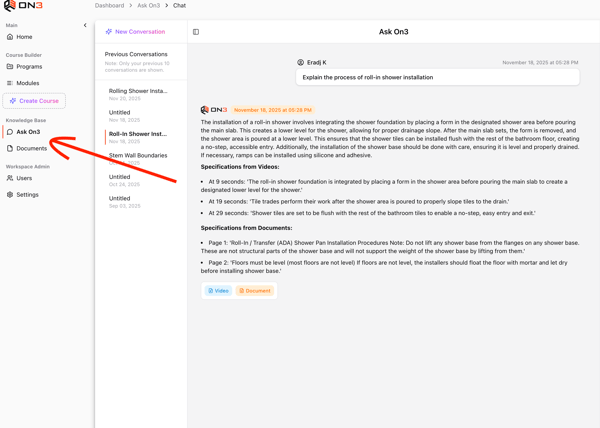
To see how AskOn3 responds using your newly indexed content:
-
Navigate to AskOn3 in the left-side navigation
-
Start a new conversation
-
Begin asking questions to see how the system uses your indexed content
8. AskOn3 Mobile App
All indexed documents become available: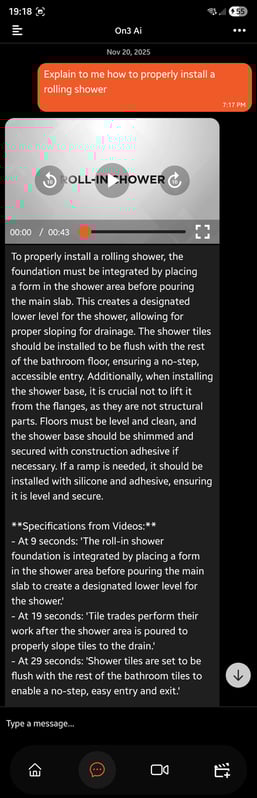
-
Inside the mobile app
-
Through AskOn3 on mobile
-
Through AskOn3 in the browser