
1. Why the Library Matters
Ask On3 responses are generated using only the content in your Library.
Key Benefits
- Ensures information is accurate and approved
- Provides a single source of truth
- Eliminates reliance on external or unverified sources
The quality of Ask On3 answers depends entirely on the quality and completeness of your Library.
2. Adding Content to the Library
To upload content:
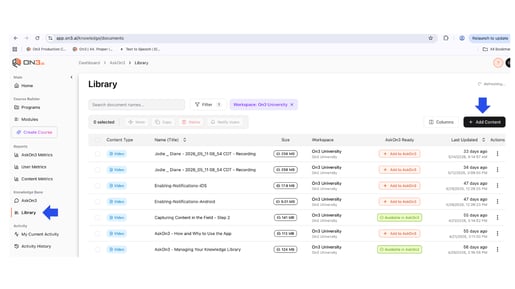
- Navigate to Library inside the On3 platform
- Click Add Content
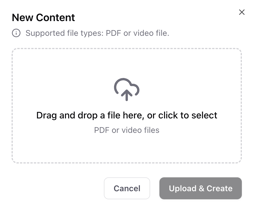
- Drag and drop files or upload from your computer
Supported Content
- Video and image files
- Microsoft Word, PowerPoint and Excel documents
- PDF documents
Note:
- You can upload up to 100 files at a time
3. Making Content Available in Ask On3
Uploading content does not automatically make it searchable.
To Enable Access
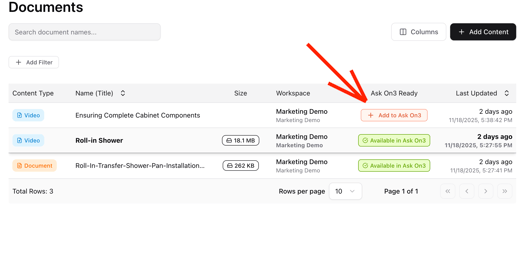
- Click on the content row
- Click the orange "Add to Ask On3" button
- Once indexing is complete the button will turn green and read "Available in Ask On3".
Processing Time
- Approximately 45–60 seconds per page for documents
- May take longer for videos
You will receive a confirmation email once the content is ready.
4. Removing or Deleting Content
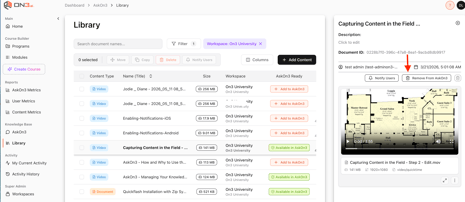
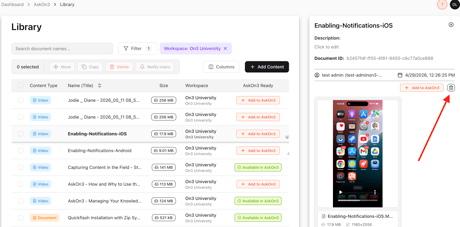
Remove from Ask On3
- Keeps the file in your library
- Removes it from search results
- In the preview panel, click Remove from Ask On3
Delete Content
- Permanently removes the file
- Use the trash icon or Actions menu
5. Viewing and Managing Content
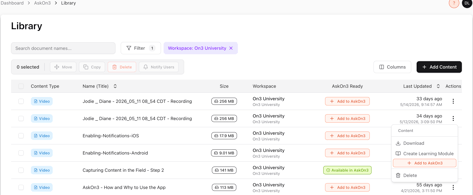
You can click the three dots to the far right of the individual line item to:
- Preview and verify content
- Download files
- Convert content into learning modules
6. Searching and Filtering the Library
Use search and filters to quickly find content.
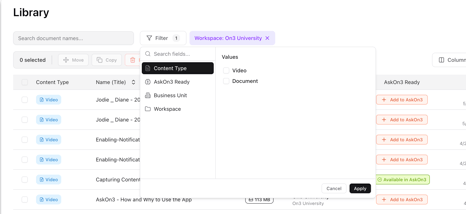
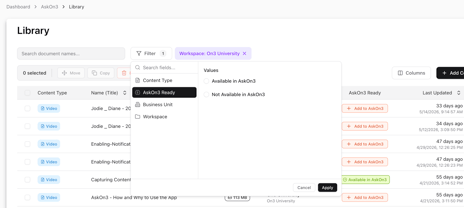
Filter Options
- Content type (choose video or document)
- Ask On3 availability status
Steps
- Click Filter
- Select criteria
- Click Apply
To reset filters, clear them using the X option.
7. Testing Content in Ask On3
You can validate how content performs in Ask On3.
Steps
- Confirm the content is marked Available in Ask On3
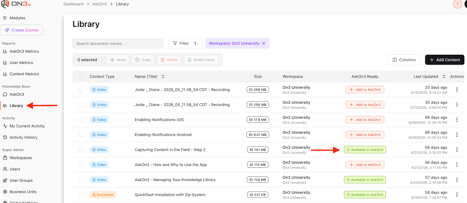
- Navigate to Ask On3
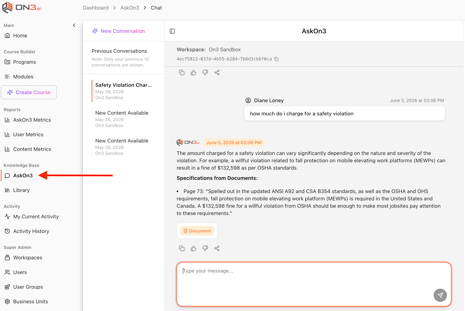
- Start a new conversation in the chat box
- Ask a relevant question
Example
“What do I need to know about scaffolding safety?”
Ask On3 will:
- Provide an answer
- Reference the source document
- Link to the relevant section
8. Translating Content
Ask On3 supports multiple languages.
To Translate
- Ask: “Translate this to Spanish” (or another language)
This allows information to be shared clearly across teams and languages.
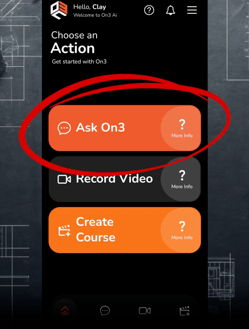
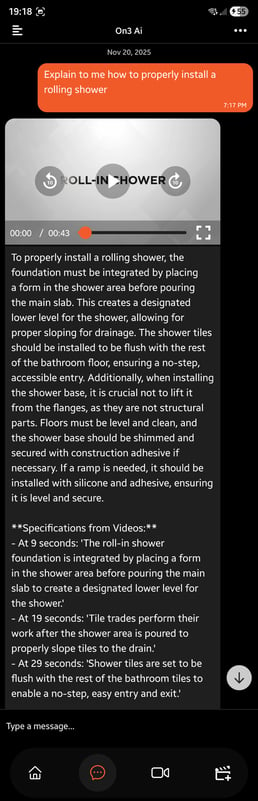
9. Ask On3 inside the On3 AI Mobile App
All indexed documents become available:
- Inside the mobile app On3 AI
- Through Ask On3 on mobile
Key Takeaways
- The Library is the foundation of Ask On3
- Only content Available in Ask On3 in the Library is searchable
- Upload content regularly to keep information current
- Use Add to Ask On3 to make content available to all users to ask upon
- Remove or update outdated content to maintain accuracy
- Test content in Ask On3 to ensure quality responses
Important Reminder
Ask On3 is only as valuable as the information in your Library.
Keep it updated with:
- Current processes
- Approved documents
- Relevant field content
A well-maintained library ensures your team can work more efficiently, accurately, and safely.