
User roles within an enrollment determine what learners can see and do within a program. Updating these roles allows administrators to control access, adjust responsibilities, and ensure the right users have the appropriate level of visibility and interaction.
This guide walks you through how to change a user's role within an enrollment in On3 Learn.
Before You Begin
-
You must have Admin or Business Unit Admin access to manage enrollments
- The users must already be part of the enrollment
⚠️ Not seeing the user in the enrollment?
The user may not have been added yet.
👉 Visit Adding Users to an Enrollment in On3 Learn to learn how to include them before assigning a role.
Steps to Change a User Role
1. Navigate to Enrollments
-
Go to the Admin tab.
-
Select Enrollments.
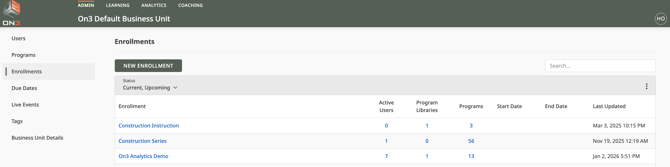
2. Open the Enrollment
-
Locate the specific enrollment where the user is assigned.
- Click to open the enrollment details.
3. Find the User
-
Scroll to the Users section.
- Search or browse for the user whose role you want to update.
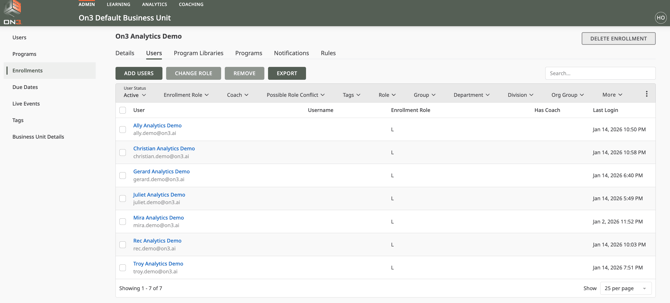
💡 Tip: If the user does not appear in the list, they are not part of this enrollment yet. Add them first, then return here to assign the correct role.
4. Change the User Role
-
Select the user you want to update.
- Click Change Role.
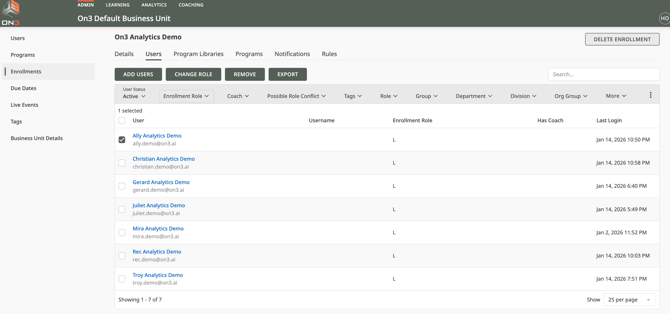
- Choose from the available roles:
- Learner (L)
- Observer (O)
- Team Coach (TC)
- Group Coach (GC)
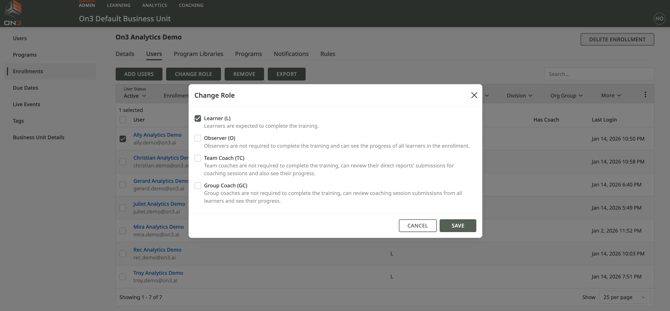
- Click Save to apply the changes.
5. Confirm Update
- Ensure the new role is reflected next to the user's name.
- Changes take effect immediately.
Best Practices
-
Assign roles intentionally
Ensure users only have the level of access they need. - Review roles regularly
Especially after organizational changes or new program launches. - Avoid over-permissioning
Limit Admin access to prevent unintended changes.
What Happens After Changing a Role?
-
The update takes effect immediately.
- The user's permissions and visibility adjust based on the new role.
- No progress or completion data is lost.
Troubleshooting
User role cannot be changed?
- Verify you have the correct admin permissions.
- Confirm the user is part of the enrollment
Role changes not reflecting?
- Refresh the page or log out and back in.
- Check if there are system-level role restrictions.