
1. How Content Appears in Content Connect
When you capture and send content using the On3 AI mobile app:
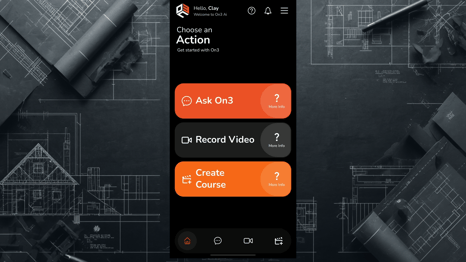
- Videos are automatically uploaded to Content Connect once you click the Finish Review button in the On3 AI mobile app.
- Enter Content Connect via your browser at app.on3.ai
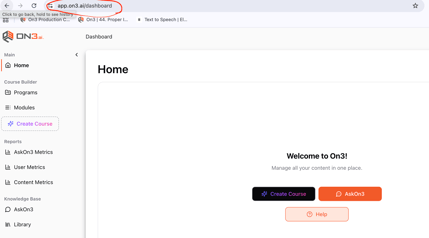
- Content becomes available in both:
- Library
- Modules
2. Understanding the Library
The Library is where all uploaded content—videos and documents—is stored and managed.
Library Table Overview
Each row represents a piece of content with the following columns:
- Content Type
- Indicates whether the item is a video or document
- Name
- Displays the content title
- Workspace
- Shows the associated company or division
- Ask On3 Ready
- Indicates whether the content is available in the knowledge base
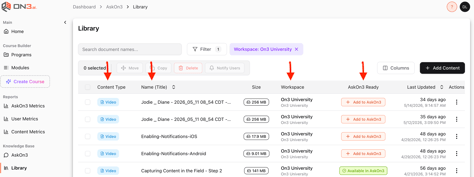
- Indicates whether the content is available in the knowledge base
3. Making Content Available in Ask On3
The Ask On3 Ready column controls whether content is available for on-demand access.
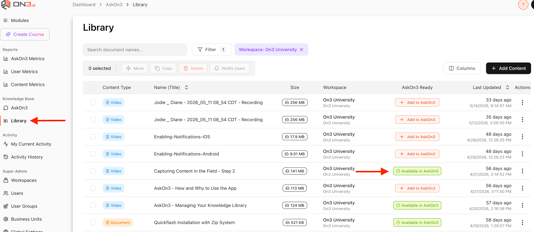
Status Indicators
- Green = Content is ready and Available in Ask On3
- Orange = Not active - Content has not yet been made available for all users
How to Add Content to Ask On3
- Locate the content in the Library
- Click the orange “Add to Ask On3” button
- The system begins processing and extracting knowledge
Once complete:
- The content becomes searchable
- Teams can access it in the field
- Content can be shared instantly
4. Understanding Modules
The Modules section is where videos are transformed into full learning experiences.
Modules include structured learning elements generated from your content.
5. Inside a Module
When you open a module, you will see several sections:
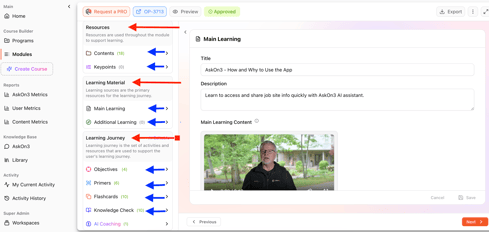
Resources
- Contains all uploaded content
- Includes original video clips
Key Points
- Individual video clips captured in the field
- Can be:
- Reordered
- Adjusted as needed
Main Learning
- Combines video clips into a single presentation
- Forms the core learning experience
Additional Learning
- Allows you to add supporting materials
- Example:
- Scope of Work (SOW) documents
Learning Components
Each module includes a complete learning structure:
- Learning Objectives
- Primers
- Flashcards
- Knowledge Checks
6. AI Coaching
Modules can include AI Coaching as part of the learning experience.
What AI Coaching Does
- Provides an interactive assessment experience
- Helps reinforce understanding
- Guides learners when they are struggling
This is often preferred over traditional multiple-choice assessments.
Key Takeaways
- Content sent from the field appears automatically in Content Connect
- The Library is used to manage and publish content to Ask On3
- The Modules section transforms content into structured learning
- Use Add to Ask On3 to make content searchable and available
- Modules include full learning experiences with AI-powered coaching