
Your profile in the On3 App helps identify you within your Learning Program. Updating your name, screen alias, or profile picture ensures that your coach, manager, and team members can easily recognize you.
Below is a step-by-step guide on how to edit your Profile Alias and Profile Picture.
How to Edit Your Profile Alias
Follow these steps to update your name or screen alias:
1. Log in to your On3 Account
Open the On3 App and enter your login credentials.
2. Go to Your Settings Page
Tap the Settings icon located on your main Learning page.
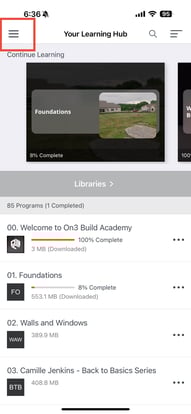
3. Edit Your Profile Information
In the Profile section, you can:
-
Customize your Screen Name (Alias)
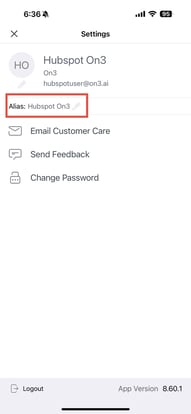
This will be the name others see when interacting with you in courses, coaching sessions, and feedback exchanges.
How to Upload Your Profile Picture
You can upload or update your profile photo from the same Settings page.
Steps to Upload a Photo:
-
In your Profile section, tap the Upload Photo option
-
Select an image from your device
-
Adjust or crop the photo if needed
-
Click Save to confirm your changes
.jpg?width=191&height=415&name=IMG_6018%20(1).jpg)
Your new profile picture will now appear across the On3 App.
Need Assistance?
If you need help updating your profile, you can reach out to our Support Team at any time.
To contact support directly from your profile:
-
Tap Email Customer Care on the same Profile page
-
Your device will open your email editor
-
Add any details about the issue
-
Our team will respond within 24–48 business hours