
Use this guide to sign in to On3 on your mobile device or in the web app, choose between an email link and a password, and request a password reset when you need a new password.
Before you begin: Have the email address or phone number associated with your On3 account ready. For the email-based steps below, you will also need access to your account’s email inbox. The screenshots use a test account; enter your own account information.
Choose the right login option
- Login with Email Link: Choose this option to sign in through a link sent to your email inbox.
- Login with Password: Choose this option if you know your current password.
- Reset Password on mobile or Forgot Password? on the web: Choose this option when you have forgotten your password or want to request a new one.
Important: The Change link below Logging in as lets you change the account you are trying to use. To request a new password, use Reset Password or Forgot Password? instead.
Log in to the On3 mobile app
Step 1 Enter your account information
- Open the On3 AI mobile app.
- In Email or Phone Number, enter the email address or phone number associated with your account. The email address is the clearest starting point for the email-link and password-reset instructions in this guide.
- Tap Continue.
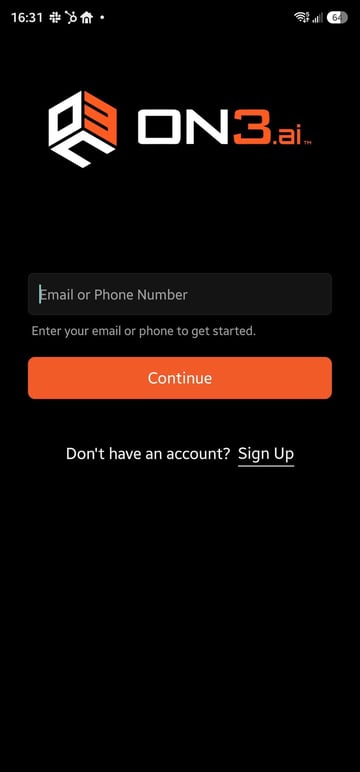
Mobile login starts with your account email address or phone number.
Step 2 Check the account and select a login method
On the next screen, review the address beneath Logging in as. If it is incorrect, tap Change and enter the correct account information before continuing.
Choose Login with Email Link or Login with Password.
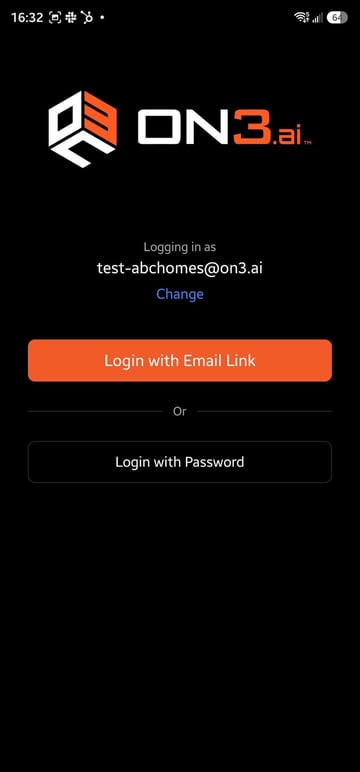
Confirm the account shown before choosing how to log in.
Option A Log in with an email link
- Tap Login with Email Link.
- Follow any instructions displayed in the app, then check the inbox for the account shown on the login screen.
- Open the On3 sign-in email you just requested and follow its login link and instructions.
- If your device asks how to open the link, follow the on-screen prompts to complete sign-in.
An email login link is for signing in. If your goal is to create a new password, use the password-reset steps below.
Option B Log in with a password
- Tap Login with Password.
- Check the account shown under Logging in as.
- Enter your current password in the Password field.
- Tap Login.
If you want to switch to an email link, tap Select a different login method. If you do not know your password, follow the next section.
Request a password reset in the mobile app
- From the mobile login screen, enter your account information and tap Continue.
- Confirm the account shown under Logging in as, then tap Login with Password.
- Tap Reset Password below the Login button.
- Look for the confirmation message: “Password reset email sent. Please check your inbox.”
- Open your account’s email inbox and follow the instructions in the password-reset email to choose a new password.
- After completing the reset, return to On3, choose Login with Password, and sign in with your new password.
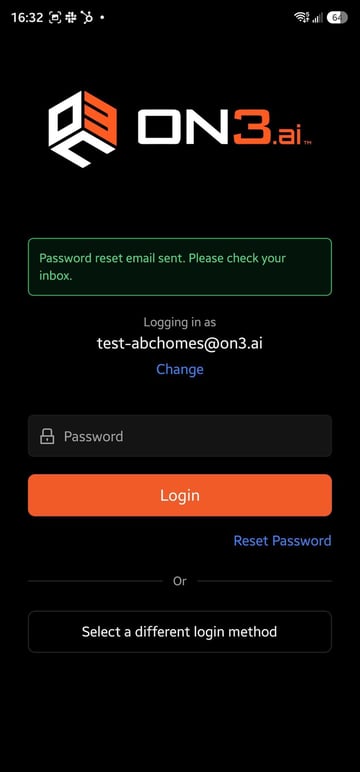
The green message confirms that a reset email was sent. You still need to complete the reset from your inbox.
The email confirmation does not mean your password has already changed. Complete the instructions in the email before trying to sign in with a new password.
Log in to the On3 web app
Step 1 Open your web login page
- Open the On3 web app using the login link provided by your organization.
- On the welcome screen for Content Connect and Ask On3, enter your account email address or phone number in Email or Phone.
- Click Continue.
Step 2 Confirm the account and choose a method
Review the address under Logging in as. Click Change if you need to enter different account information.
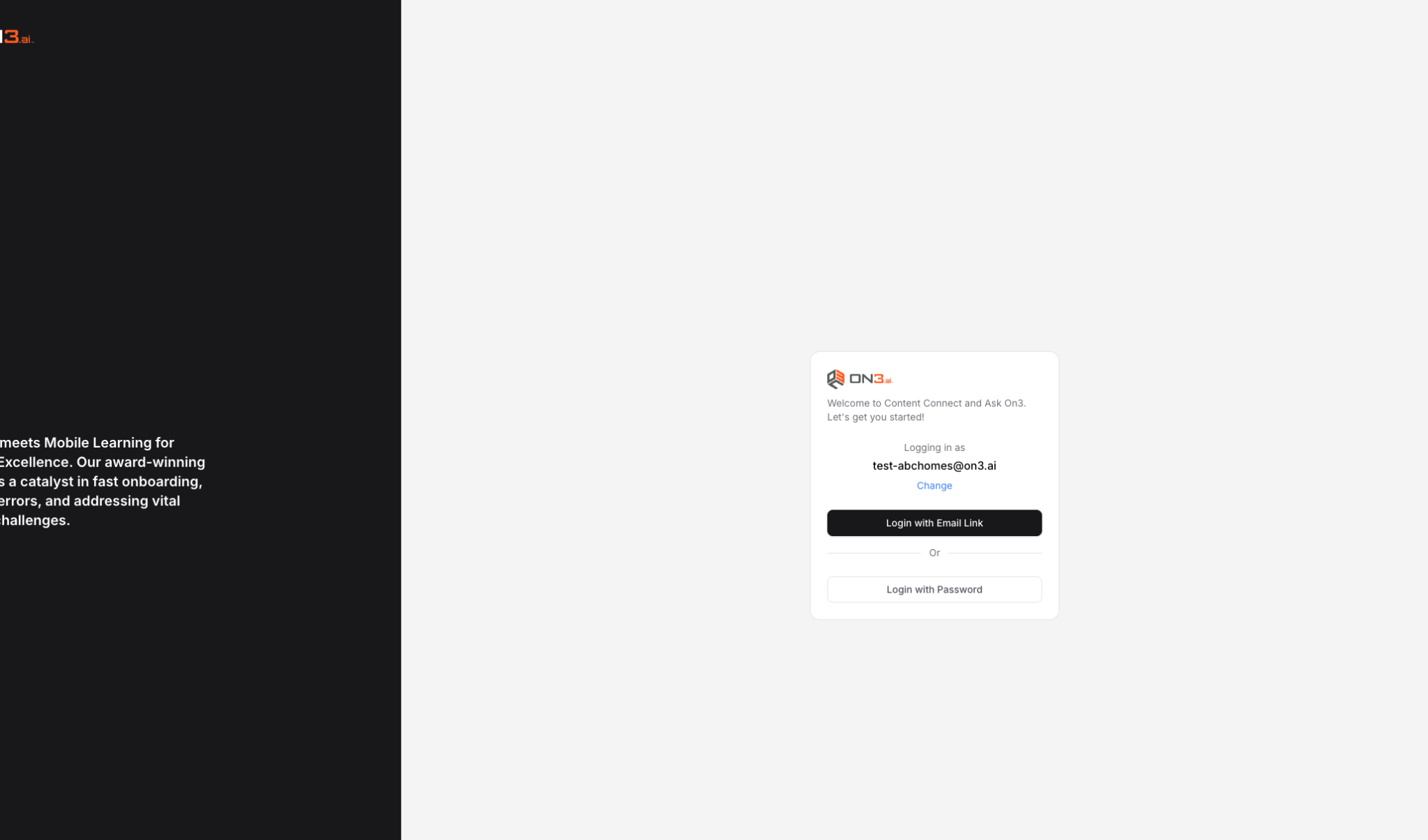
The web app offers email-link login and password login.
Option A Log in with an email link
- Click Login with Email Link.
- Follow any instructions on the page, then check the inbox associated with the account shown.
- Open the On3 sign-in email you just requested and follow its link and instructions to complete sign-in.
Option B Log in with a password
- Click Login with Password.
- Enter your current password in Password.
- Review any notices displayed on the page, then click Login.
The web password screen shown below includes a checkbox for SMS communications. Read its wording before making a selection. If Login is unavailable, review the page for missing information or a validation message.
To return to the login-method choices, click Select a different method.
Request a password reset in the web app
- Open the On3 web login page, enter your account information, and click Continue.
- Confirm the account shown, then select Login with Password.
- Click Forgot Password? beneath the password field.
- Follow the instructions displayed to request a password reset. If asked to confirm an email address, use the address associated with your On3 account.
- Check that inbox and follow the password-reset email’s instructions to choose a new password.
- After completing the reset, return to the web app and log in with your new password.
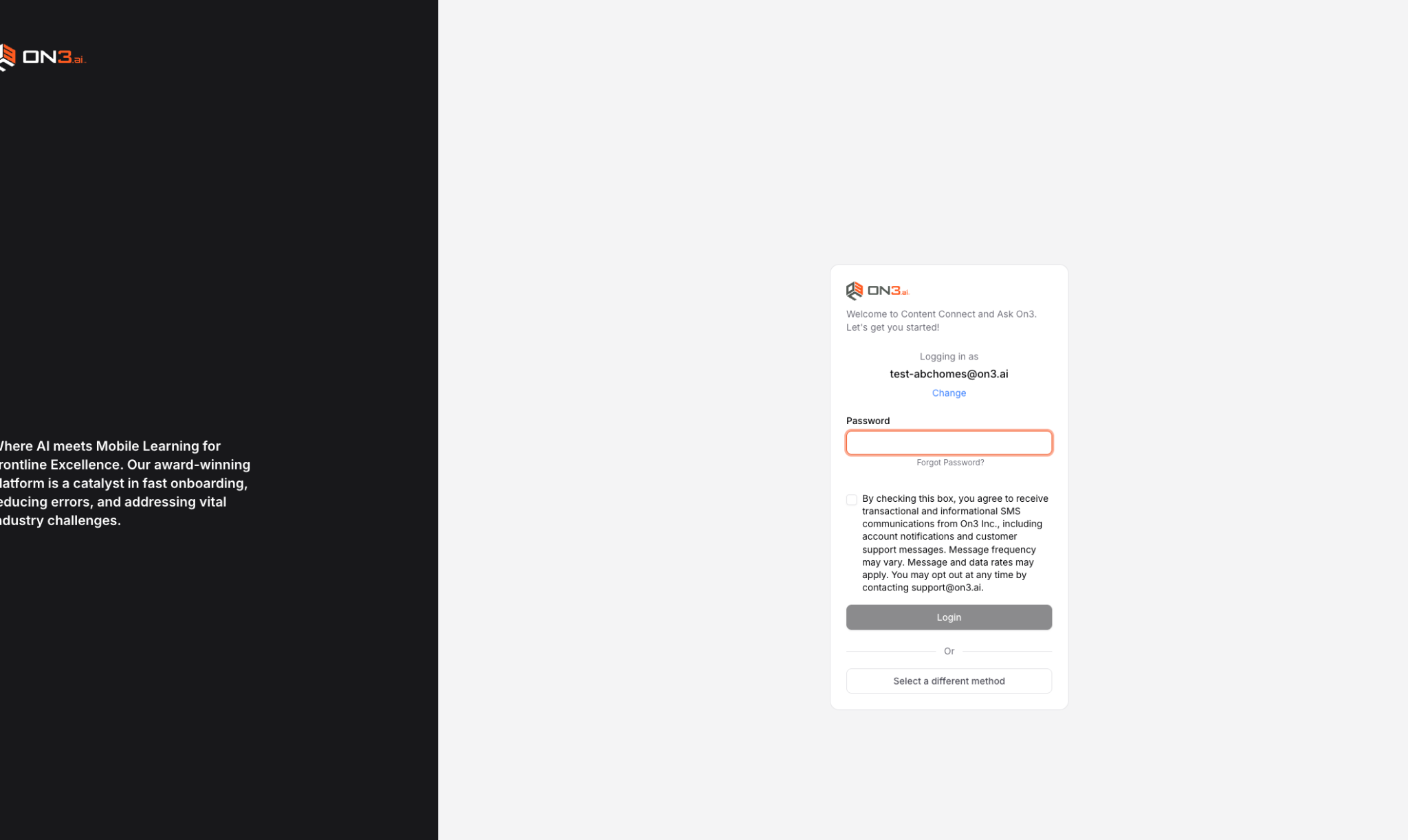
On the web, use Forgot Password? beneath the password field to start a reset request.
Complete the password change safely
Follow the requirements displayed on the password-reset page. Choose a strong, unique password and save it securely. If your browser or password manager still fills an older password afterward, update its saved entry before your next login.
Use only a login or reset email you requested. Keep passwords and sign-in links private. If you receive an unexpected reset email, avoid using its link and contact support through a trusted channel if you are concerned.
Troubleshoot login and password-reset problems
The wrong account appears under Logging in as
Select Change, enter the correct email address or phone number, and continue. Check for typing errors and make sure you are using the account associated with your organization.
The login or password-reset email has not arrived
- Check the inbox for the exact account shown on the login screen.
- Check spam, junk, and any filtered folders. For a work mailbox, your organization may also quarantine messages.
- Allow a few minutes for delivery before requesting another email.
- If you requested several emails, use the most recently requested message. If the page says a link has expired or is invalid, start a new request from the On3 login screen.
The password is not accepted
Check capitalization, Caps Lock, and accidental spaces. Make sure a password manager is not filling an old password or the password for another account. If you are unsure of the current password, request a reset rather than repeatedly guessing.
I received a reset confirmation but still cannot log in
The mobile confirmation means the email was sent. Open the email, finish the password-reset instructions, and then use the new password to log in. Requesting the email alone does not complete the password change.
I cannot access the email address associated with my account
Contact your organization’s On3 administrator or On3 support at support@on3.ai for help. Do not send your password or a login/reset link. Include whether you are using the mobile or web app and the exact error message you see.
Should I select Sign Up if I already have an account
Use the login or password-reset options for an existing account. If you are unsure which account your organization uses, check with your administrator before creating another account.