
This guide shows you the different ways to reset or change your password for your On3 account. While the On3 Learn App keeps you logged in on your mobile device, you may need to log in again when switching devices—or reset your password if you’ve forgotten it.
If You Forgot Your Password
Follow these steps to reset your password:
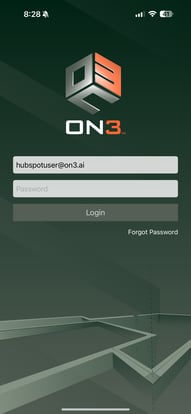
1. Go to the Login Page
-
Click Forgot Password.
2. Enter Your Email Address
Type in the email address associated with your On3 account.
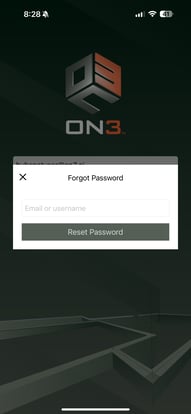
3. Click Reset Password
Select Reset Password to trigger the password reset email.
4. Check Your Email
Open the reset password email sent to your inbox and follow the steps provided to create a new password.
Tip: If you don’t receive the email within an hour, check your spam or junk folder.
If the email still doesn’t arrive, contact Support (see: How to Contact Support from Your App).
How to Change Your Password Anytime
If you know your current password and simply want to update it, follow these steps:
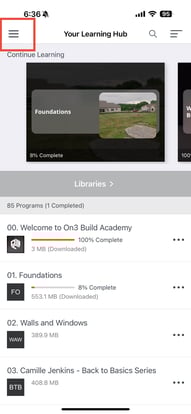
1. Open Your Settings Menu
From your Learning Hub page:
-
Tap the three lines (☰) located in the upper-left corner of the screen.
-
This will take you to your Settings page.
2. Click Change Password
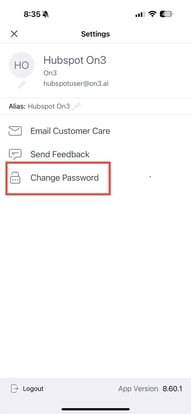
3. Check Your Email
You will receive a password reset email.
Follow the instructions to update your password.
Reminder: Review the guidelines for creating a strong password. (See article: How to Keep Your Account Secure)
Important Notes
-
You only need to log in once per device after installing the On3 Learn App.
-
When using a new device, you must download the app and log in again.
-
Downloaded training files stay inside the app and do not transfer between devices.
If you need further assistance, you can always reach out to our Support Team:
See: How to Contact Support from Your App.