
When you need to revisit a course, complete something urgently, or quickly find a step you forgot, scrolling through your entire course list can slow you down. To make navigation easier, the On3 Learn App includes powerful search and sorting features that help you locate courses in seconds.
These tools allow you to search by keywords, filter by name or date, and quickly access the content you need.
Using Word Search
The fastest way to find a course is by using the Word Search feature.
How to Use Word Search
-
Go to your Learning Hub.
-
Tap the magnifying glass icon.
-
A search box will appear.
-
Type a keyword related to the course or topic you’re looking for.
.jpg?width=191&height=415&name=IMG_6005%20(1).jpg)
As you type, the On3 Learn App will:
-
Predict possible search queries
-
Show a drop-down list of related words and phrases
-
Help you locate both course titles and course descriptions
This allows you to pinpoint the right course without having to browse manually.
Sorting Courses by Name or Date
If you prefer browsing instead of searching, you can sort your course list to make navigation easier.
How to Sort Your Courses
-
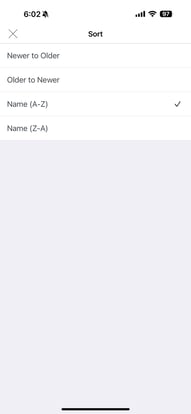
Tap the three lines in the upper right-hand corner of your screen.
-
A pop-up menu will appear at the bottom.
-
Choose whether you want to sort by:
-
Name – Alphabetical order
-
Date – Newest to oldest
-
.jpg?width=190&height=413&name=IMG_6005%20(2).jpg)
When to Use Each Option
Sort by Date
-
Best for finding the newest courses assigned to you
-
Helpful when reviewing courses added recently
-
Useful when checking older courses taken months ago
Sort by Name
-
Best when you know the exact title of the course
-
Makes alphabetical browsing faster and more organized
Improve Discoverability Through Feedback
If a course is hard to find or doesn’t appear in search results:
-
You can send feedback to your admin team
-
They can add or adjust keywords in the course description
-
This improves how easily courses can be discovered in the future
Your feedback helps enhance the user experience for your entire team.