
In On3, Assignments allow you to set Due Dates for the programs learners are enrolled in. This helps ensure timely completion of training and supports accountability across your business unit. When a Due Date is assigned, learners will automatically receive reminders as the deadline approaches.
What Are Due Dates Used For?
Due Dates help you:
-
Remind learners to complete required programs
-
Track progress and compliance
-
Maintain consistent training timelines
-
Support performance and readiness goals
Learners will see their assigned Due Dates in their Learning Portal and mobile app, helping them prioritize what to complete next.
How to Manage Due Dates
You can assign Due Dates individually or in bulk. Follow these steps to assign a new Due Date to learners:
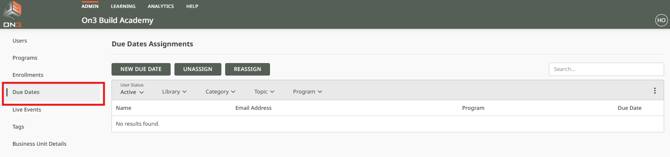
1. Go to the Due Dates tab
Navigate to the Due Dates area.
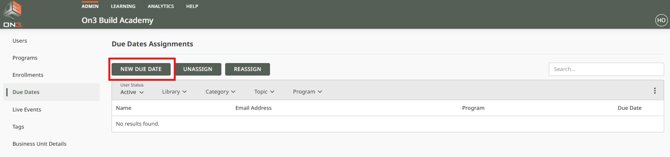
2. Select New Due Date
Click New Due Date to begin creating an assignment.
3. Select a Program, Due Date, and User(s)
Choose:
-
The Program
-
The Due Date
-
One or more Users
-
You may select as many users as needed, as long as they share the same Due Date.
-
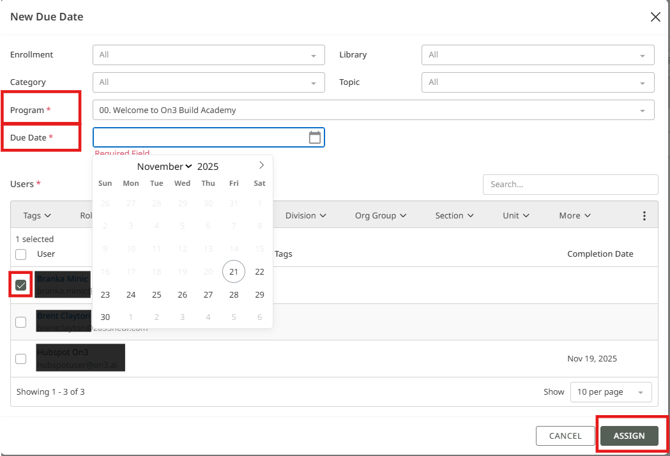
4. Click Assign
After reviewing your entries, click Assign to finalize the Due Date.
Learners will immediately receive visibility of the new Due Date and will receive reminders as the deadline approaches.
Why Use Due Dates?
By using Due Dates effectively, you can:
-
Keep learners aligned with training expectations
-
Improve completion rates
-
Maintain organizational readiness
-
Gain clear visibility into upcoming requirements
Due Dates help you create a consistent, accountable, and well-managed learning environment in On3.