
Managing Users
The Users section in Workspace Admin gives authorized administrators the ability to view, add, filter, update, and bulk-manage user accounts. This article explains each user role and how to manage users effectively.
1. User Roles Explained
Understanding roles is important before adding or managing users. Roles determine what a user can see and do inside On3.
| Permission / Action | Basic User | Basic Editor | Editor | Workspace Admin | Business Unit Admin |
|---|---|---|---|---|---|
| Use AskOn3 (Mobile & Web) | Yes | Yes | Yes | Yes | Yes |
| Receive content alerts | Yes | Yes | Yes | Yes | Yes |
| Record and submit field videos | No | Yes | Yes | Yes | Yes |
| View training modules and documents* | No | Yes* | Yes | Yes | Yes |
| Create Modules | No | Yes | Yes | Yes | Yes |
| Upload to Library | No | Yes | Yes | Yes | Yes |
| Delete from the Library | No | Yes** | Yes | Yes | Yes |
| Approve and publish content | No | No | Yes | Yes | Yes |
| Edit content created by others | No | No | Yes | Yes | Yes |
| Add to AskOn3 Library | No | No | Yes | Yes | Yes |
| Remove from AskOn3 Library | No | No | Yes | Yes | Yes |
| Add and manage users | No | No | No | Yes | Yes |
| Change user roles | No | No | No | Yes | Yes |
| Deactivate or reactivate users | No | No | No | Yes | Yes |
| Manage multiple workspaces simultaneously | No | No | No | No | Yes |
* can see, delete their own content
** can delete their own from the Library unless content is already in indexed. In this case operation must be completed by a user with Editor role or above.
Role Summary
|
Role |
Primary Purpose |
|
Basic User |
Consume training, complete assignments, use AskOn3. |
|
Basic Editor |
Create draft videos for review. |
|
Editor |
Approve, publish, and maintain content, including AskOn3 indexing. |
|
Workspace Admin |
Manage users, roles, and all content within a single workspace. |
|
Business Unit Admin |
Perform all Workspace Admin functions across multiple workspaces assigned to the business unit. |
2. Who Can Manage Users
Only the following roles have permissions to manage or add users:
-
Workspace Admin
-
Business Unit Admin (if enabled)
Other roles have restricted or no access to this section.
3. Adding a User
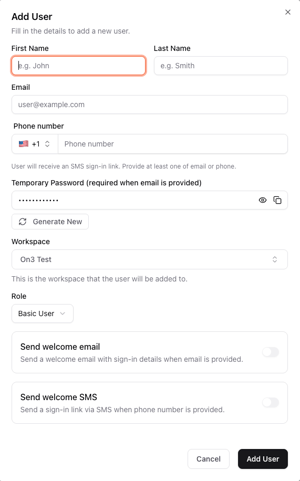
After understanding roles, you can manually add users as needed.
Steps to Add a User
-
Navigate to Workspace Admin → Users
-
Click Add User
-
Enter the user's email address
-
Select the appropriate role
-
Click Save
What Happens Next
-
The user receives a Welcome Email with login instructions
-
Email includes their initial login credentials
-
If they need to change their password, they can use Forgot Password on the login screen
4. Password Setup & Reset
User-Initiated Password Reset
Users can reset their password at any time:
-
Open the login screen
-
Tap Forgot Password
-
Enter their email
-
Follow the link in the email to set a new password
Admin-Initiated Reset (Bulk)
-
Select one or more users
-
Choose Actions → Reset Password
-
Users receive password reset emails automatically
5. Bulk User Actions
You can perform actions for multiple users at once.
Available Bulk Actions
-
Resend Welcome Email
-
Useful for users who never activated their accounts
-
-
Reset Password
-
Sends a password-reset link to selected users
-
How to Use Bulk Actions
-
Navigate to Workspace Admin → Users
-
Select multiple users using checkboxes
-
Open the Actions menu
-
Choose the desired bulk action
-
Confirm
6. Searching for Users
Use the search bar to quickly find users.
Search Options
-
First name
-
Last name
-
Partial name
-
Email address
Search updates results instantly.
7. Filtering Users
Filters help narrow down large user lists.
Status Filter
-
Active
-
Suspended
Role Filter
-
Basic User
-
Basic Editor
-
Editor
-
Workspace Admin
-
Business Unit Admin
You can combine filters (e.g., "Active" + "Editor").
8. Automatic User Sync
User accounts sync automatically from the On3 Learn system.
-
Sync runs every 24 hours
-
New Learn users appear after the next sync
-
Status changes sync automatically
-
Helps maintain consistent user data across systems
9. Best Practices
-
Assign the smallest necessary role to maintain platform security
-
Use bulk actions to support large groups quickly
-
Regularly review suspended/inactive users
-
Keep Business Unit assignments clean and accurate
-
Use filters for managing large teams efficiently