
The Engagement Report in On3 Learn helps administrators understand how learners interact with training content across programs. This report highlights user activity, engagement actions, and learning behavior trends—providing insight beyond completion status.
This article walks you through accessing the Engagement Report, using filters, reviewing summary metrics, and exporting data.
How to Access the Engagement Report
-
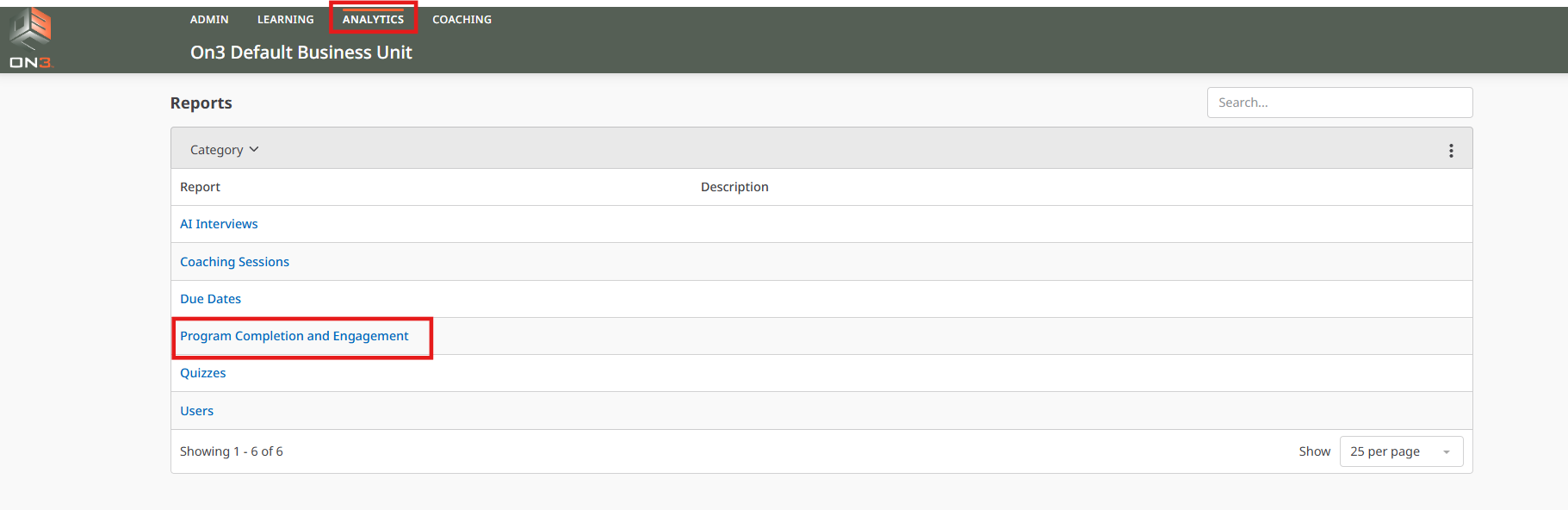
Log in to On3 Learn using your Admin username and password.
-
Navigate to the Analytics tab.
-
Select Program Completion and Engagement.
-
On the landing page, click the Engagement tab.

Using Filter Controls
To refine your Engagement Report results:
-
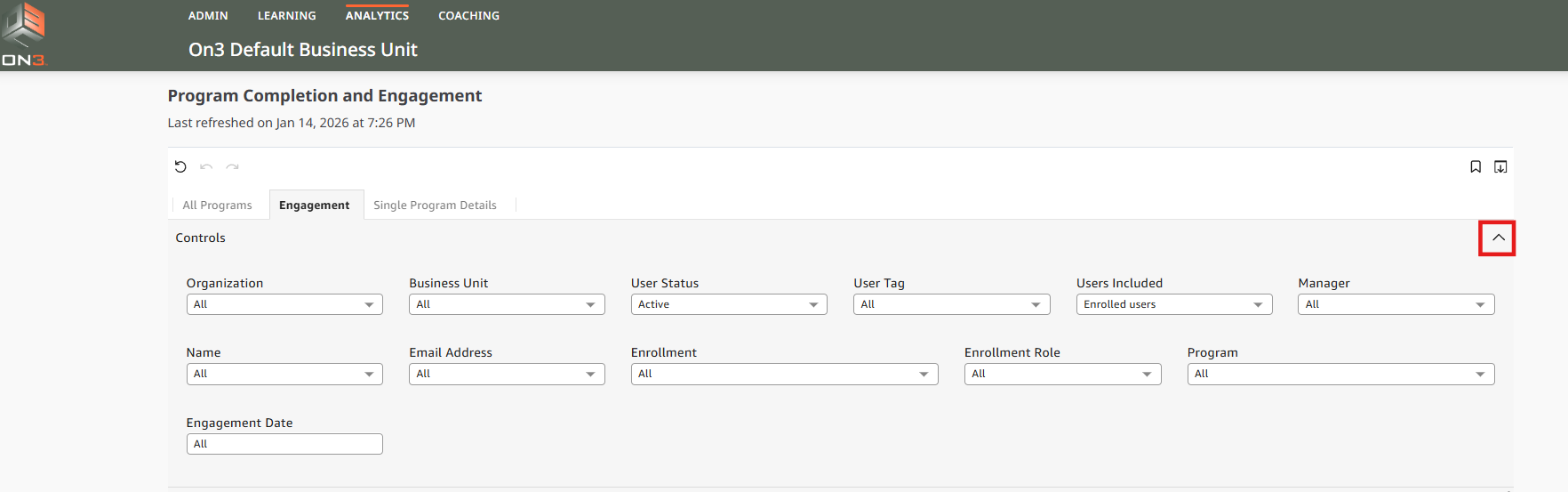
Click the arrow located at the upper-right corner of the data box to open Filter Controls.
-
Apply filters based on your reporting needs.
Available Filters Include:
-
User Status (Active, Inactive, or Both)
-
User Tags (if tags are assigned)
-
Manager
-
Learner Name
-
Email Address
-
Enrollment (if you manage multiple enrollments)
-
Enrollment Role
-
Programs
-
Engagement Date
These filters allow you to focus on specific learners, teams, programs, or engagement timeframes.
Viewing Summary Metrics
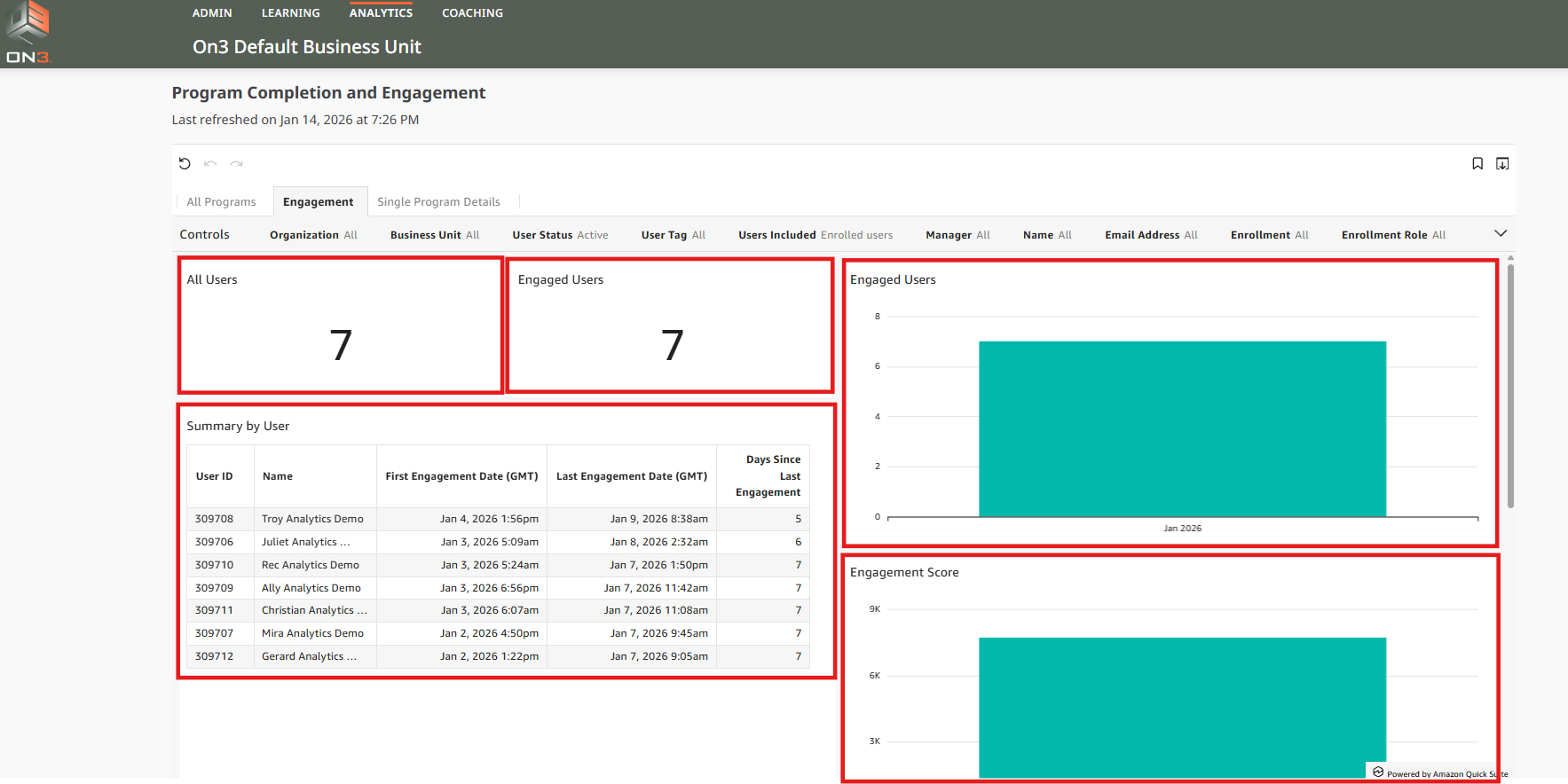
At the top of the Engagement Report, you will see a summary that includes:
-
All Users
-
Engaged Users
-
Summary by User
-
Bar graph showing Engaged Users
-
Bar graph showing Engagement Score
Interacting With Summary Data
-
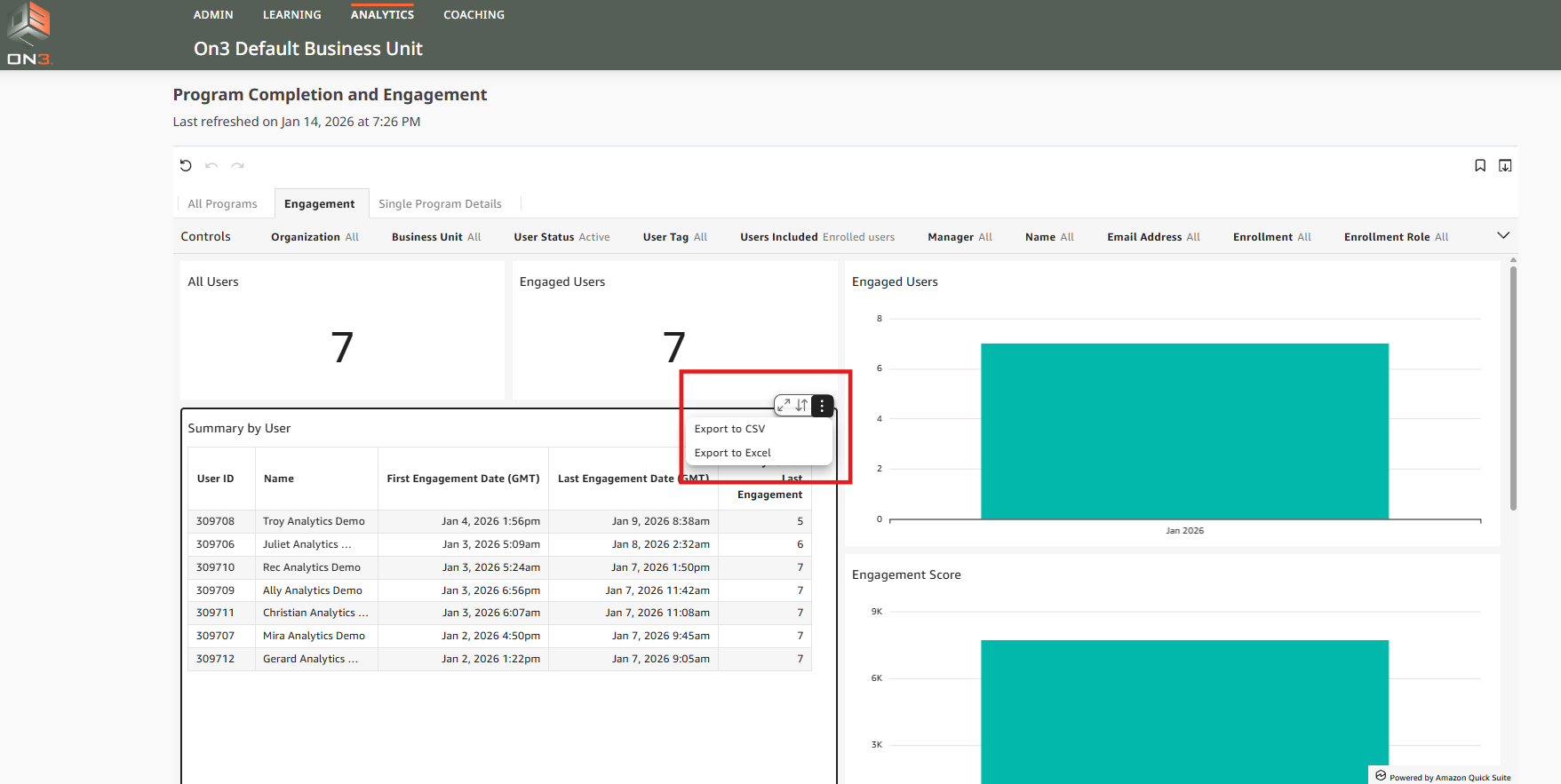
Hover over the summary data box
-
Click the three horizontal dots to:
-
View Summary Data
-
Export to CSV
-
Drilling Into Engagement Trends
For the bar graphs, you can drill up or down by Engagement Date to view data by:
-
Monthly
-
Quarterly
-
Yearly
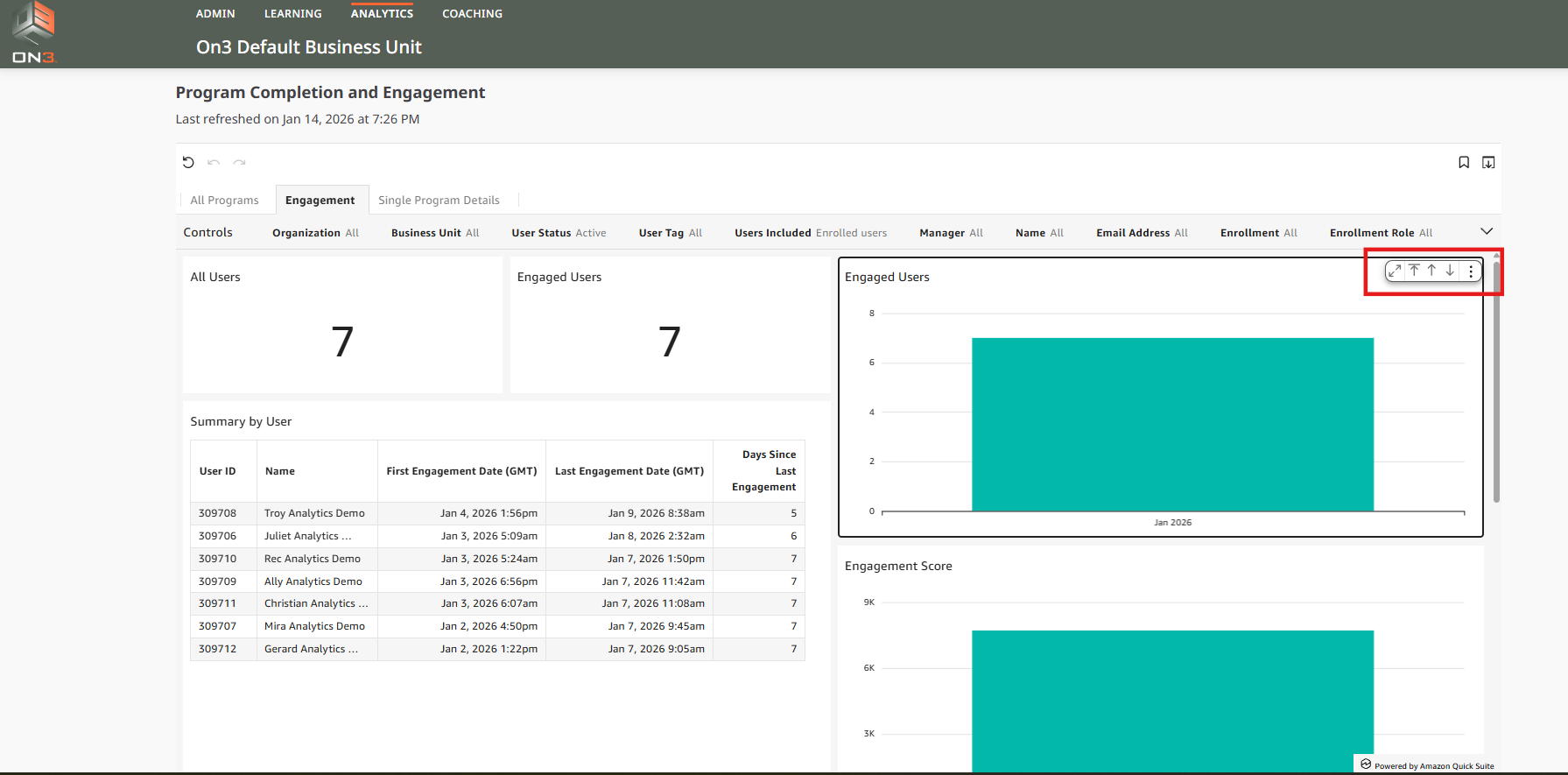
These visuals provide a quick snapshot of engagement patterns and learner activity over time.
Reviewing Detailed Engagement Data
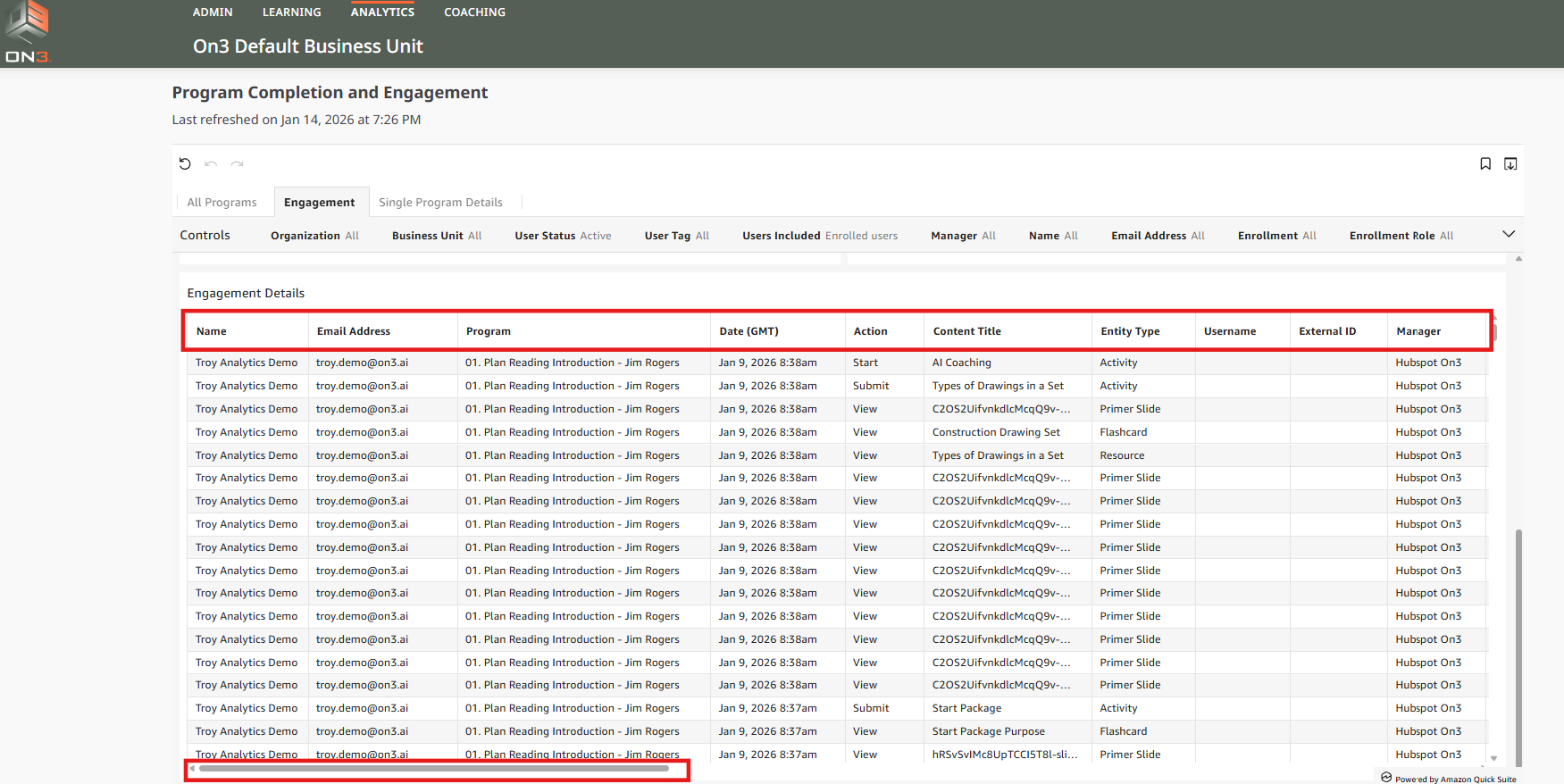
Below the summary section is a detailed table displaying:
-
User Name
-
Program Name
-
Engagement Date
-
Action (View, Start, Submit)
-
Entity Type, which may include:
-
Primer / Content Slide
-
Flashcard
-
Activity
-
Resource (Video or Document)
-
Tip
-
Note: Entity Types represent the building blocks of a learning program and help interpret each step in a learner’s learning journey.
Additional data fields are available in the Details section.
To view them, drag the horizontal scroll bar from left to right.
Exporting Engagement Reports
If you need to analyze data outside of On3 Learn:
-
Export the Details section
-
Available formats include:
-
CSV
-
Excel
-

Exports allow you to customize reports, share insights, or perform deeper analysis.
Summary
The Engagement Report helps administrators:
-
Measure learner interaction beyond completion
-
Track engagement actions and behavior
-
Identify how learners consume training content
-
Analyze trends across programs and time periods
Using filters, visual summaries, and exports gives you a comprehensive view of learner engagement across your team.