
The Program Completion and Engagement report in On3 Learn provides administrators with insight into learner activity across both assigned and unassigned training. Unlike the Due Dates report, this report focuses on overall engagement and completion trends across programs.
This article walks you through accessing the report, using filters, reviewing summary metrics, and exporting data—focusing specifically on the All Programs (Completion) tab.
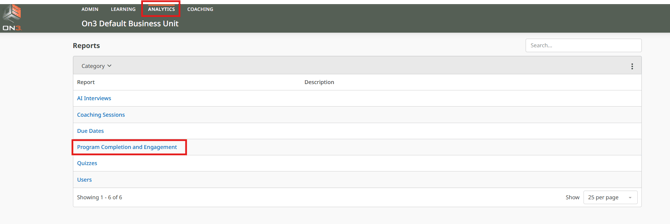
How to Access the Program Completion and Engagement Report
-
Log in to On3 Learn using your Admin username and password.
-
Navigate to the Analytics tab.
-
Select Program Completion and Engagement.
Understanding the Report Tabs
On the landing page, you will see three data tabs:
-
All Programs (Completion)
-
Engagement
-
Single Program Details

In this article, we focus on the All Programs (Completion) tab, which provides a broad overview of program-level completion and engagement data.
Using Filter Controls
To refine your report results:
-
Click the arrow located at the upper-right corner of the data box to open Filter Controls.
-
Apply filters based on your reporting needs.
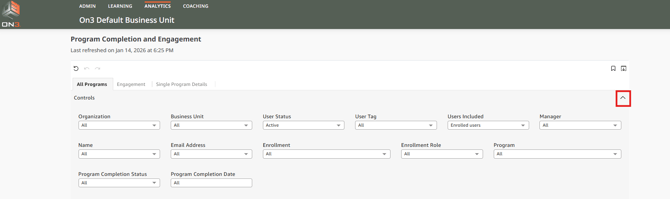
Available Filters Include:
-
User Status (Active, Inactive, or Both)
-
User Tags (if tags are assigned)
-
Manager
-
Learner Name
-
Email Address
-
Enrollment (if managing multiple enrollments)
-
Enrollment Role
-
Programs
-
Completion Status
-
Completion Date
These filters allow you to narrow results by learner, program, role, or compliance requirements.
Viewing Summary Metrics
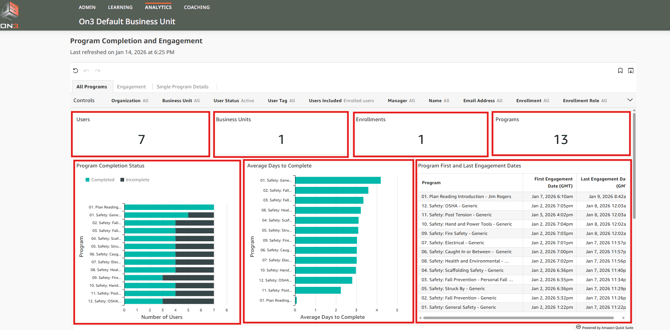
At the top of the report, you will see summary data that includes:
-
Number of Users
-
Business Units (if managing multiple units)
-
Enrollments (if managing multiple enrollments)
-
Number of Programs
-
Bar graph showing Complete vs. Incomplete status per program
-
Bar graph showing Average Days to Complete
-
Program First and Last Engagement Dates
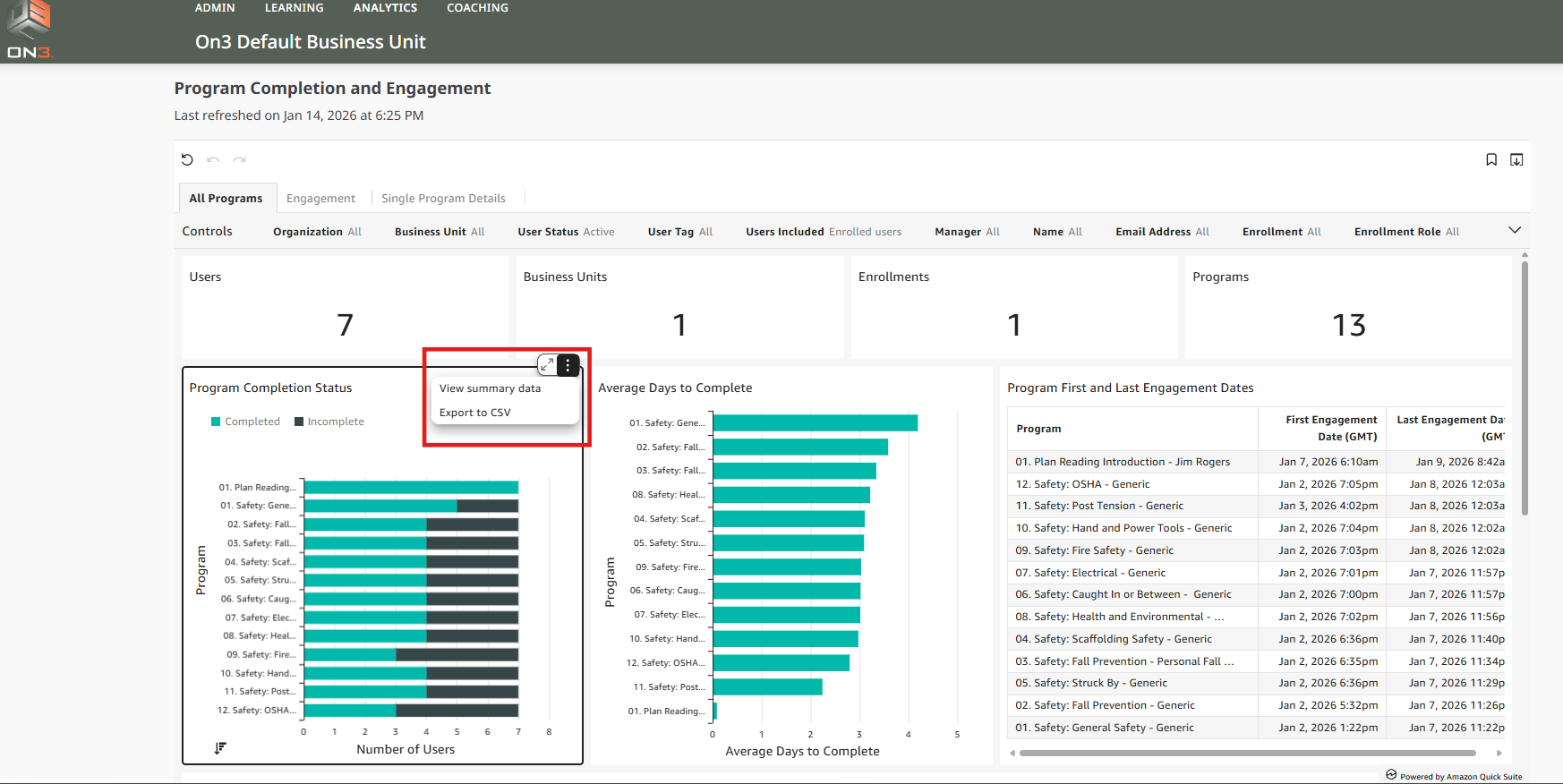
To access summary actions:
-
Hover your cursor over the summary data box
-
Click the three horizontal dots to View Summary Data or Export to CSV
These visuals provide a quick snapshot of overall training performance and engagement.
Reviewing Detailed Report Data
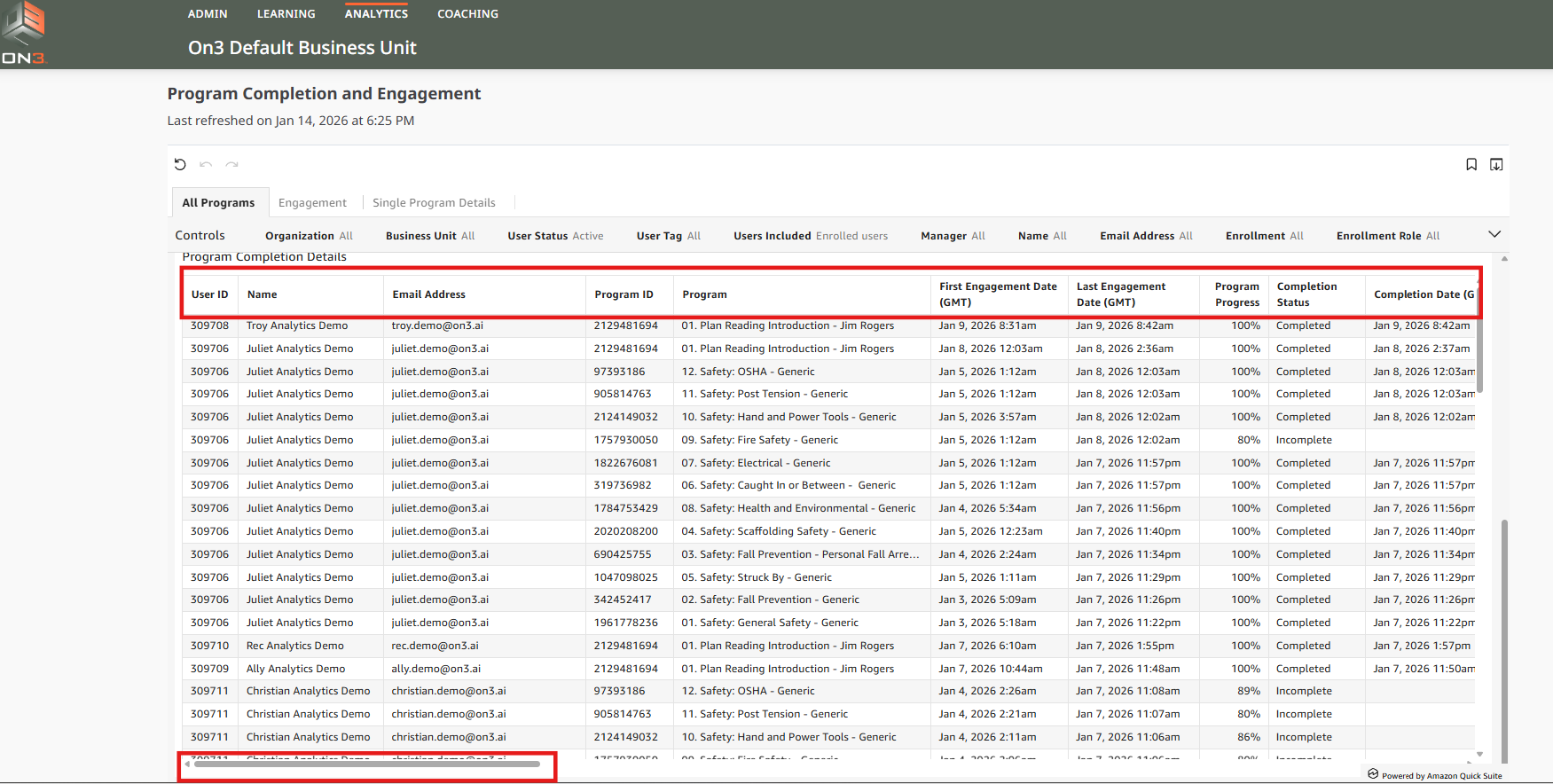
Below the summary section is a detailed table displaying:
-
User Name
-
Program Name
-
First Engagement Date
-
Last Engagement Date
-
Program Progress
-
Completion Status
-
Completion Date
Additional data fields are available in the Details section.
👉 To view more fields, drag the horizontal scroll bar from left to right.
Exporting Reports
If you need to work with the data outside of On3 Learn:
-
Export the Details section
-
Available formats:
-
CSV
-
Excel
-
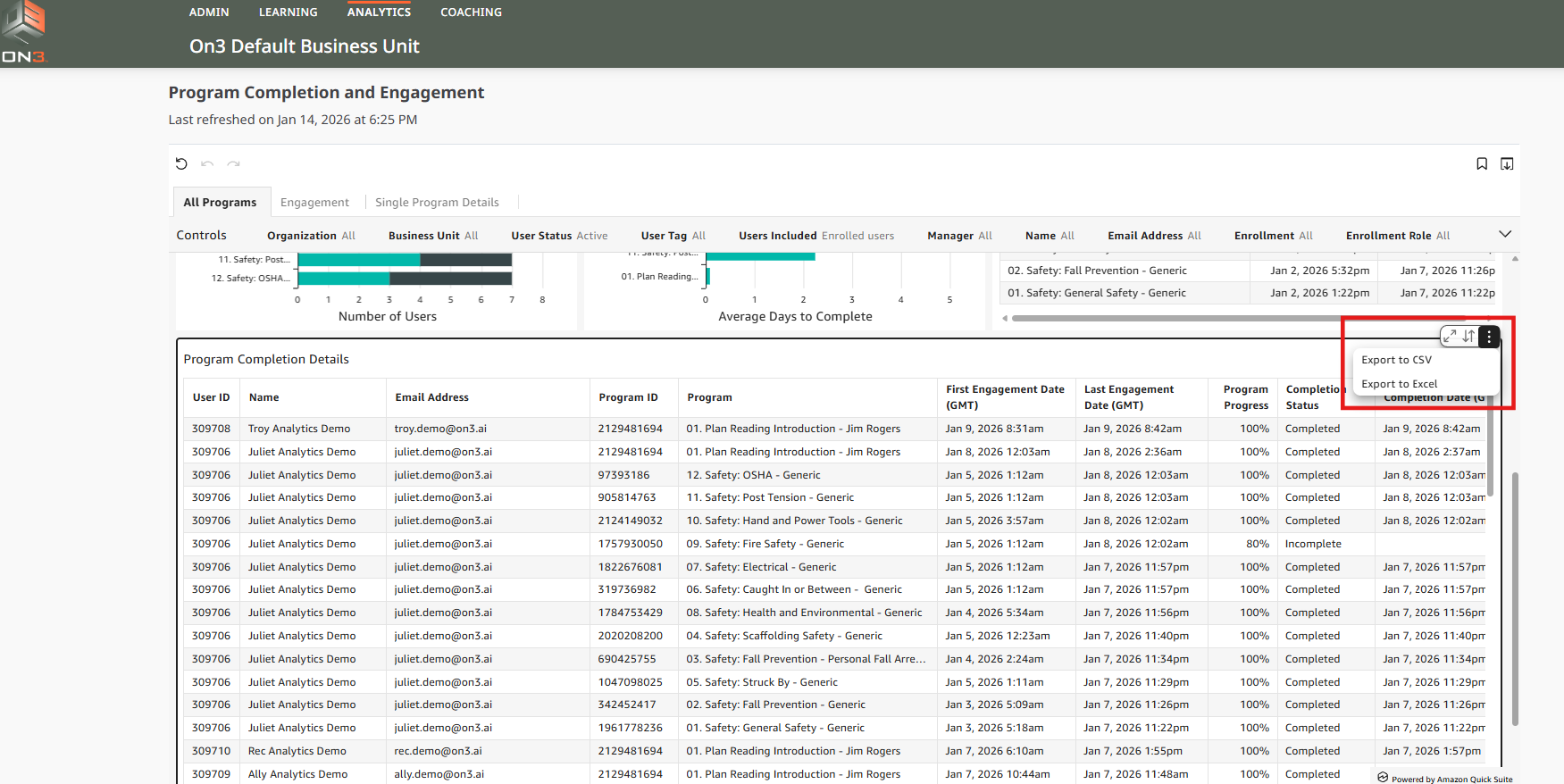
Exporting allows you to customize views, share insights, or conduct deeper analysis.
Summary
The Program Completion and Engagement report helps administrators:
-
Track completion across assigned and unassigned programs
-
Measure learner engagement over time
-
Identify completion trends and performance gaps
-
Export data for reporting and compliance reviews
Using filters, summaries, and exports ensures you have full visibility into learner activity across your organization.