When Should You Reset Browser Data?
Resetting browser data can resolve issues such as:
- Unable to sign in
- Pages not loading correctly
- Features not responding as expected
- Permission prompts not appearing
- Camera or microphone access not working
- Changes not appearing after an application update
After clearing browser data, completely close and reopen your browser before signing back into On3.
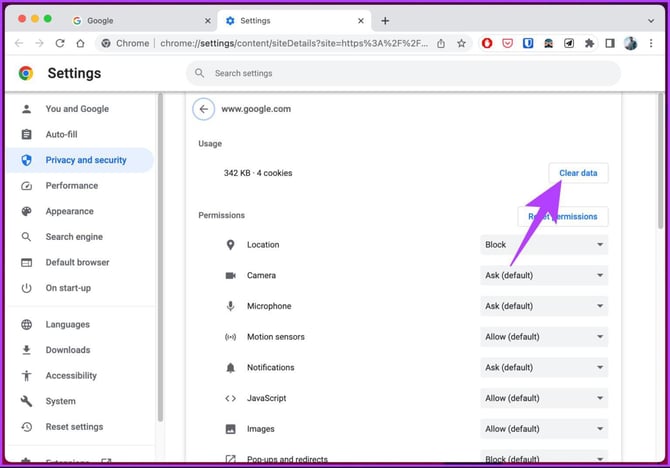
Google Chrome
Google Chrome provides a direct shortcut to the On3 site settings.
Open On3 Site Settings
Copy and paste the following into Chrome's address bar:
chrome://settings/content/siteDetails?site=https%3A%2F%2Fapp.on3.aiReset Site Permissions
- Open the On3 site settings using the link above.
- Review any permissions that have been denied (Camera, Microphone, Notifications, etc.).
- Change permissions back to Allow as needed.
- Under Usage, click Clear data (if available).
- Refresh the On3 application and sign in again.
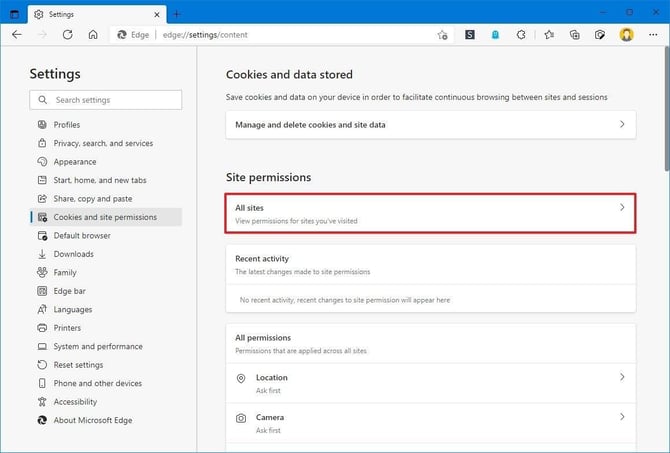
Microsoft Edge
Because Microsoft Edge is Chromium-based, it supports the same direct site settings page.
Open On3 Site Settings
Copy and paste the following into the Edge address bar:
edge://settings/content/siteDetails?site=https%3A%2F%2Fapp.on3.aiReset Site Permissions
- Open the On3 site settings using the link above.
- Restore any blocked permissions such as:
- Camera
- Microphone
- Notifications
- Clear the site's stored data if needed.
- Restart Edge and reopen On3.
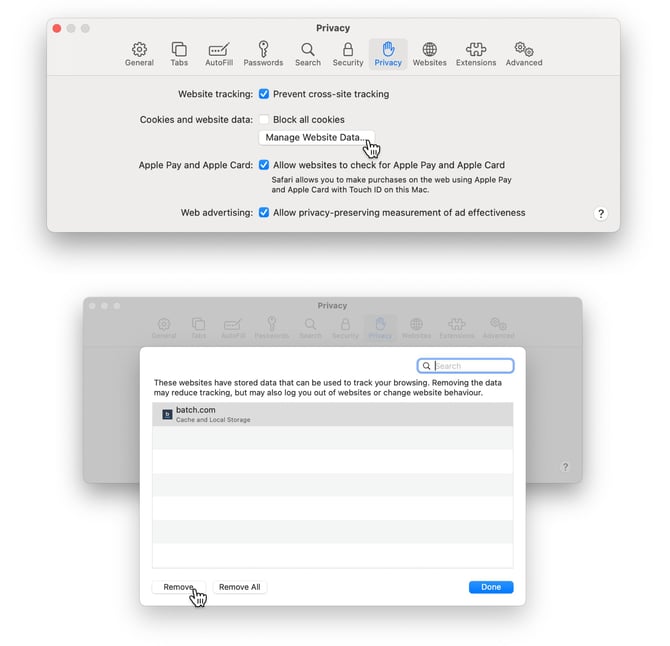
Safari (macOS)
Safari does not provide a direct URL to open website settings. Permissions and website data must be managed through Safari Settings.
Clear Website Data
- Open Safari
- Select Safari → Settings (or Preferences on older versions)
- Open the Privacy tab
- Click Manage Website Data
- Search for app.on3.ai
- Select it and click Remove
- Click Done
Review Website Permissions
If camera, microphone, or notifications were previously denied:
- Open Safari → Settings
- Select the Websites tab
- Review:
- Camera
- Microphone
- Notifications
- Locate app.on3.ai
- Change the permission to Allow where appropriate.
After Resetting
Once browser data has been cleared:
- Close the browser completely
- Reopen the browser
- Navigate back to app.on3.ai
- Sign in again
- Re-enable any requested permissions if prompted