
Coaching Sessions are a key part of reinforcing learning and supporting learner development. When a learner under your supervision submits a Coaching Session, On3 Learn makes it easy for you to review their submission and provide timely, meaningful feedback.
This guide walks you through how to review Coaching Sessions and submit feedback as a Coach or Supervisor.
When a Coaching Session Is Submitted
Once a learner submits a Coaching Session:
-
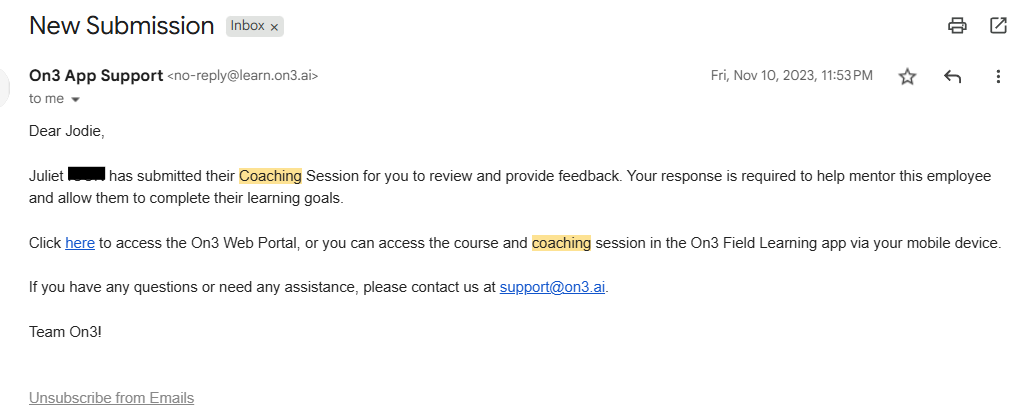
You will receive an email notification from On3 App Support
-
This notification signals that the submission is ready for your review and feedback
How to Review a Coaching Session
1. Log In to On3 Learn
Go to the On3 Learn website and log in using your username and password.
2. Navigate to the Coaching Tab
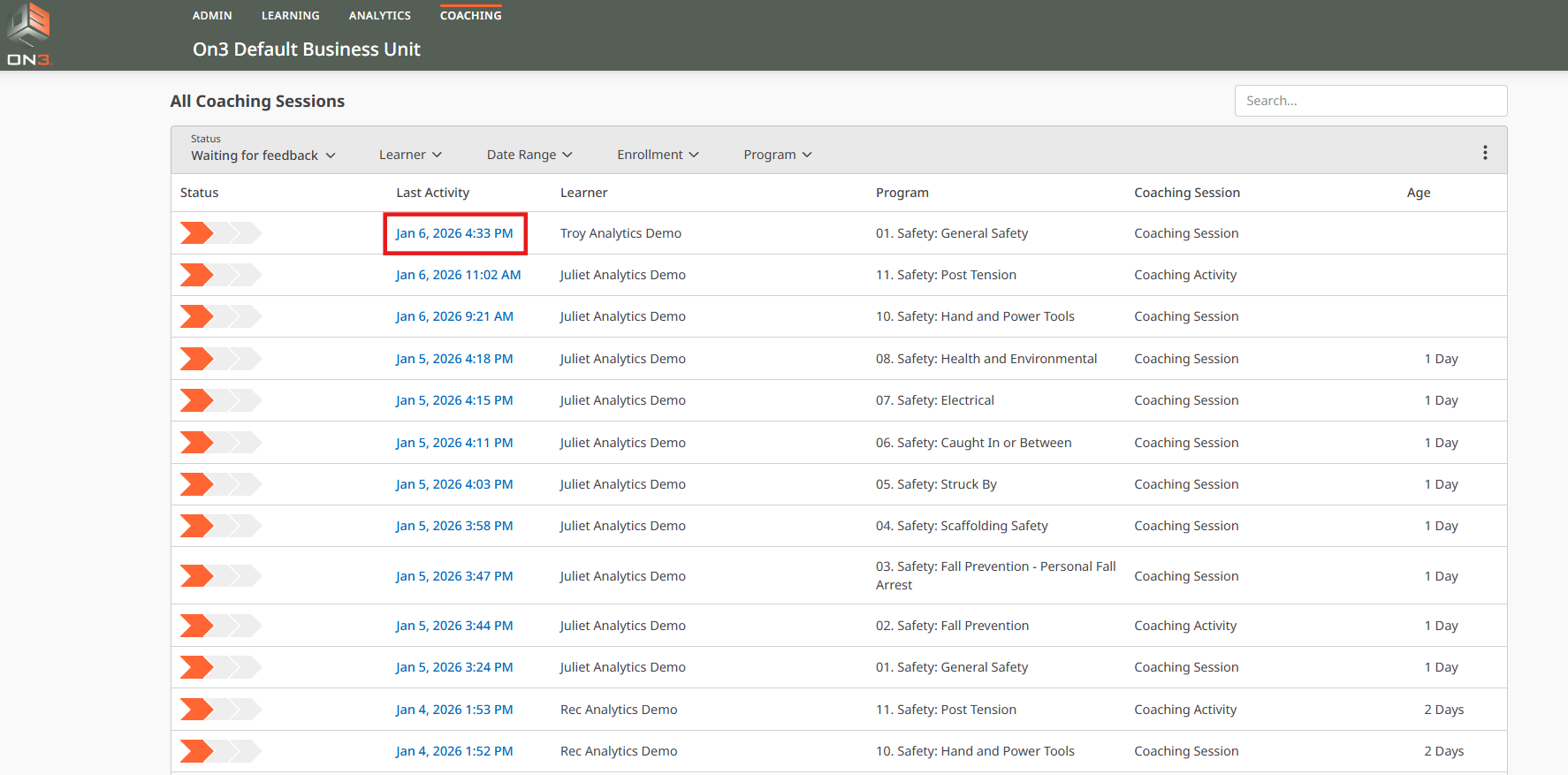
After logging in, click the Coaching tab to view all Coaching Sessions assigned to you.

3. Select the Coaching Session
Under the Last Activity column, click the date associated with the Coaching Session you want to review.
This action will open the learner’s submission.
4. Review the Learner’s Submission
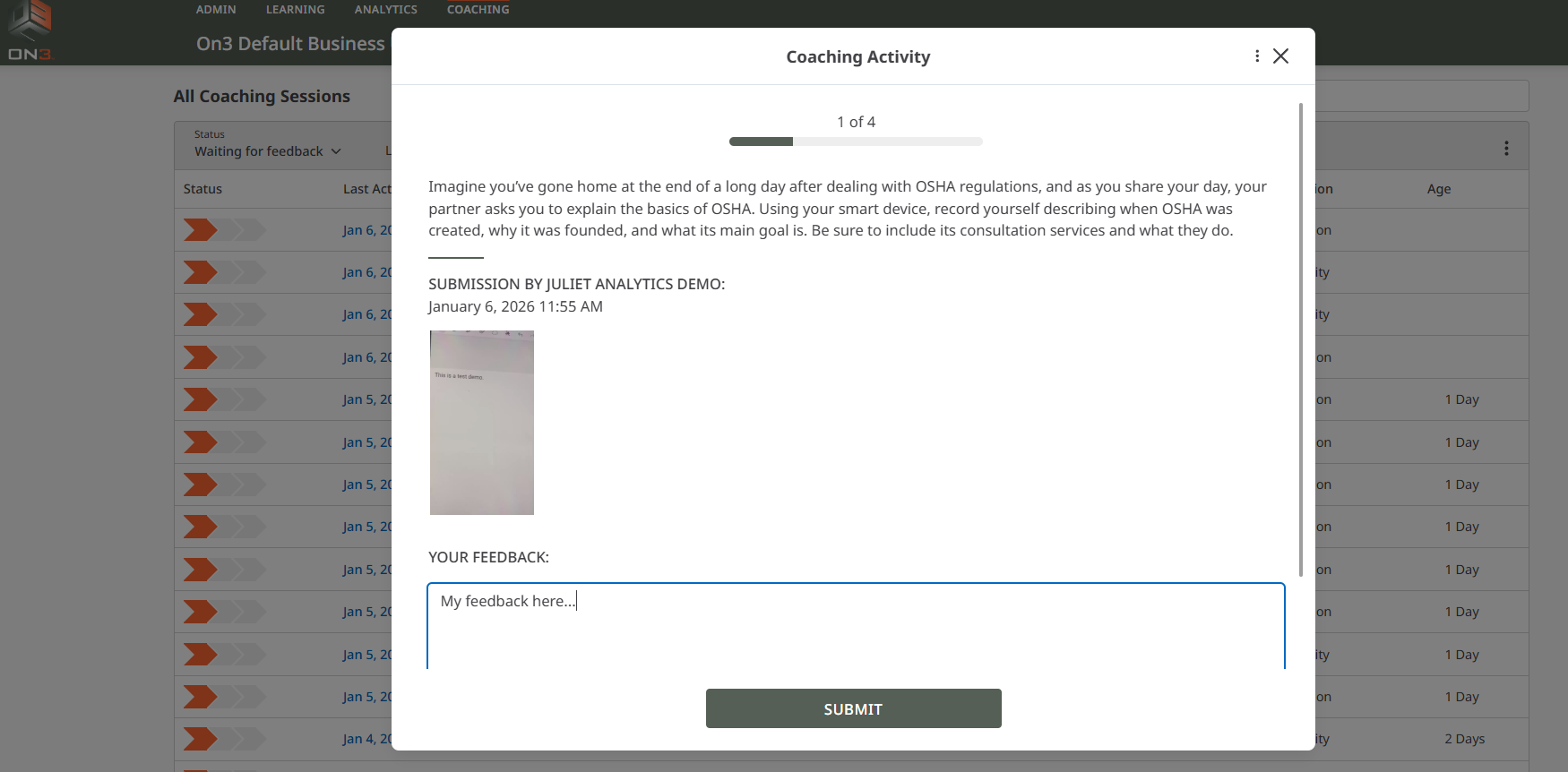
A pop-up window will display:
-
The coaching question
-
The learner’s response, which may be submitted as:
-
Text
-
Audio
-
Video
-
Take time to review the learner’s response carefully.
5. Provide Your Feedback
Enter your feedback directly in the response area. Feedback may include:
-
Clarifications or corrections
-
Reinforcement of correct understanding
-
Guidance for improvement
-
Encouragement and next steps
Once finished, click Submit.
Reviewing Multiple Coaching Questions
If the program includes multiple Coaching Sessions:
-
After clicking Submit, the next coaching question and learner submission will automatically appear
-
Continue reviewing and submitting feedback until you reach the final question
Viewing Submitted Feedback
To view the feedback you’ve already provided:
-
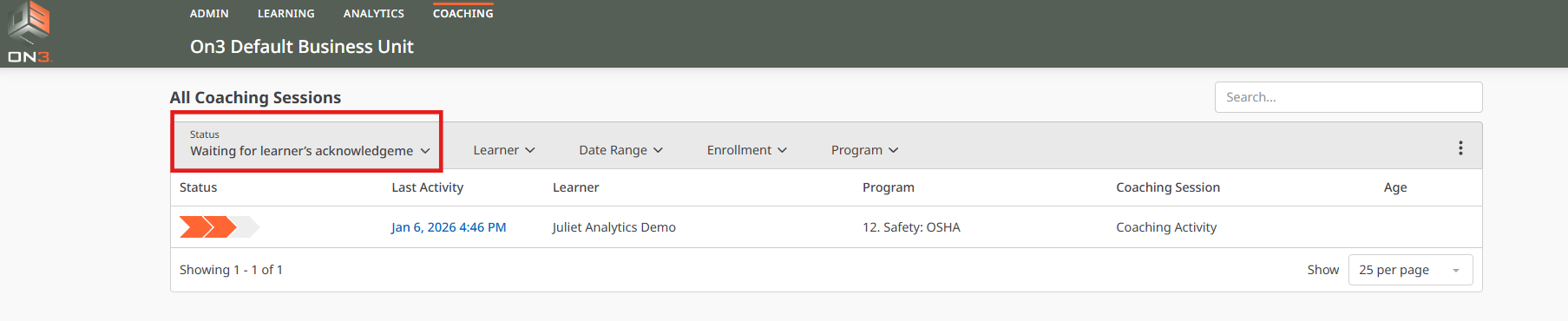
Go to the Status section
-
Select “Waiting for learner’s acknowledgement”
This status indicates that feedback has been submitted and is awaiting review or acknowledgement by the learner.
Understanding Program Completion Status
By default:
-
The learner will receive a Completed status for the program once the supervisor submits coaching feedback
However, in some cases:
-
The learner must acknowledge the coaching feedback before the program is marked as Complete
If you are unsure which completion rule applies:
-
Check with your company’s Learning Administrator, or
-
Contact support@on3.ai for clarification