
Settings
The Settings page under Workspace Admin allows you to control key workspace-level configurations including default approvers, notification preferences, AI coaching behavior, and branding.
1. Default Approvers
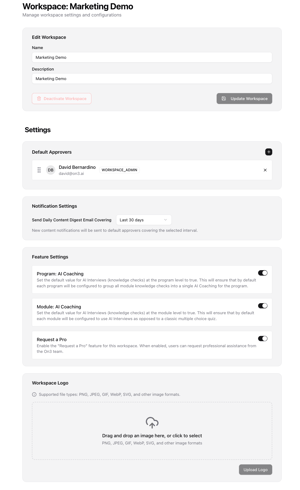
Default Approvers define who is responsible for reviewing and approving newly created or captured content. This ensures that any incoming videos, drafts, or submitted materials are routed to the appropriate people for approval.
How Default Approvers Work
-
Assign individuals who have content-approval authority
-
These users will receive a daily content digest email
-
The digest summarizes all content captured or added recently
-
Approvers use this to review, approve, or return content as needed
Why Default Approvers Matter
-
Maintains quality control
-
Ensures timely review of field-captured content
-
Provides a clear approval workflow for your workspace
2. Notification Settings
Notification settings allow you to control how far back the system looks when generating the daily content digest email.
Daily Content Digest Lookback Window
The “Covering” dropdown allows the approver to select a time range:
-
From 1 day up to 60 days
This controls how much historical incoming content is included in the daily email for review.
Purpose
-
Helps reviewers manage large volumes of content
-
Provides flexibility for teams who do not check daily
-
Ensures no pending content is missed
3. Feature Settings (AI Coaching Controls)
Feature settings determine how Program Coaching and Module AI Coaching behave inside your workspace.
Program Coaching
Controls whether AI Coaching sessions should be created automatically when multiple modules have been grouped together under a program.
Module AI Coaching
Controls whether AI Coaching content should be generated by default when:
-
A module is completed
-
The module has been fully edited
-
The session is ready for AI Coaching creation
Turning this on ensures coaching content is generated automatically without manual intervention.
4. Workspace Logo
The Workspace Logo section allows you to upload or update the logo used across training materials.
Purpose of the Workspace Logo
-
Applies branding to training content
-
Ensures modules and exported materials appear on-brand
-
Provides a consistent visual identity across the workspace
Usage
Once updated:
-
New training content will reflect the updated branding
-
Branding applies automatically during module generation