
See which questions your library does not fully cover, add the missing information, and check the result in Ask On3.
Knowledge Gaps is designed for workspace administrators with Ask On3 reporting access. Business Unit Admins and Super Admins can also use it within their permitted workspaces.
1 Find the topics your team needs
Open Knowledge Base > Knowledge Gaps in Content Connect. Select your workspace, then choose Open Topics.
Choose Last 30 days or Last 90 days. Use the Category filter to focus on an area of work, or group the list to make it easier to review.
The Count of conversations with un-answered questions column counts separate conversations associated with a topic. It is not a count of individual people. Repeating a question several times within one conversation does not make it several conversations.
Start with recurring topics, then consider their importance. A missing safety procedure may need attention before a more common, lower-risk question.
2 Read the questions behind a topic
Expand a topic and use Show more to review its question and conversation examples.
Use these examples to define what your content needs to explain. A useful document might need a step-by-step procedure, an approved limit, an escalation contact, or a clear description of who is responsible.
3 Add the missing information
Open Topic Actions and select Add content for this gap.
The New Content dialog keeps the topic under Covering and shows a People asked description. Check these details before choosing your file.
Choose Upload from Device and select the content that answers the questions. For this gap-specific workflow, the content is added to Ask On3 as part of processing.
Keep the material current and approved for your team. A file that mentions the topic without supplying the missing answer may provide only partial coverage or leave the gap open.
4 Follow the coverage check
Open Pending Topic Coverage while the content is being processed and checked.
The content needs to finish processing before On3 can assess coverage. Uploading a file alone does not mean the gap has been resolved.
5 Read the result carefully
Open Topics Recently Covered and review the coverage status, coverage strength, contributor, and linked content.
- Covered (verified) means On3 has checked the content against the topic.
- Partial means the content covers some of the topic. Review the remaining questions.
- Full describes the extent of coverage.
- Covered (provisional) should be kept separate from verified coverage when you report progress.
For a fully covered result, look for Covered (verified) together with Full. Treat that result as a reason to test the answer your team will receive.
If a gap remains open, return to its examples and add the missing detail. A smaller Open Topics list alone is not proof that the gaps were fully resolved.
6 Check the content in Ask On3
Open the Library and find the supporting content. Confirm that it is marked Available in Ask On3.
Start a new Ask On3 conversation and ask one of the original questions. Review the answer, open its source reference, and check that the source contains the guidance your team needs.
For important procedures, use your normal content-approval process as well as this answer check.
Review reporting context
Open Reports > Ask On3 Metrics > Coverage to review answered and unanswered topic analysis alongside your gap review. These report metrics are separate from the verified Full or Partial status in Knowledge Gaps.
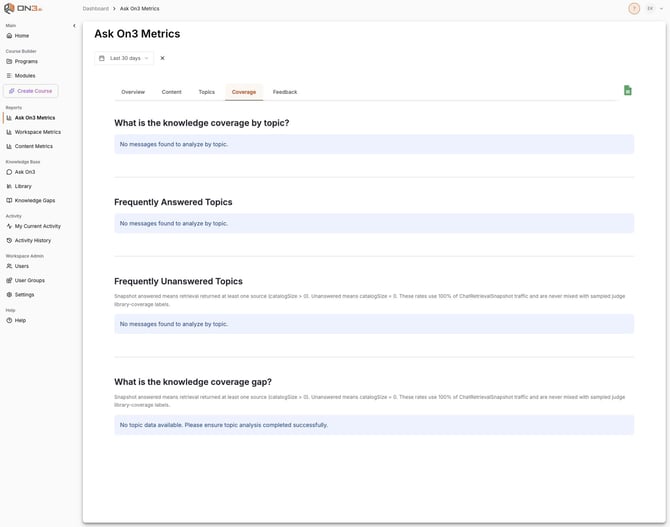
DEV Coverage report example. No topic-analysis data is shown here; this does not mean all knowledge gaps are closed.
Key takeaways
- Use the example questions to choose the missing information your content needs to answer.
- Read verification status and Full or Partial strength together.
- Keep the same priority-topic list for your next review, and retest the original questions in Ask On3.
The accompanying Measure the knowledge gaps your team closes guide gives you a simple before-and-after method.
For the ordinary Library upload workflow, see Managing Your Knowledge Library.