
Once your Enrollment has been set up, the next step is to add users so they can access the assigned learning programs. Adding users to an Enrollment in On3 Learn is quick and flexible, allowing you to select individuals or add users in bulk using filters.
Before You Begin
Make sure you:
-
Are logged in using an On3 Learn Admin account
-
Have already created the Enrollment you want to manage
Note: If the users you want to add do not yet exist in the system, you’ll need to create them first.
👉 Refer to the article: How to Add New Users in On3 Learn
Steps to Add Users to an Enrollment
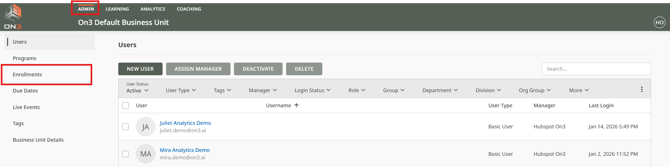
1. Go to the Admin Tab
Log in to On3 Learn and navigate to the Admin tab.

2. Select Enrollments
Click Enrollments to view the list of available enrollments.
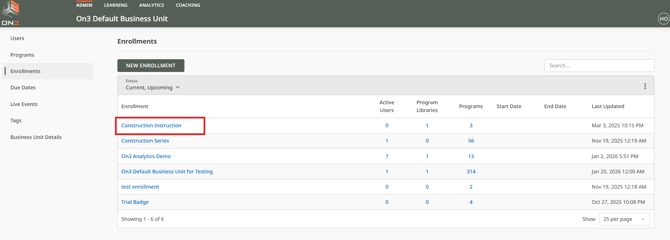
3. Open the Enrollment
Select the Enrollment where you want to add users.
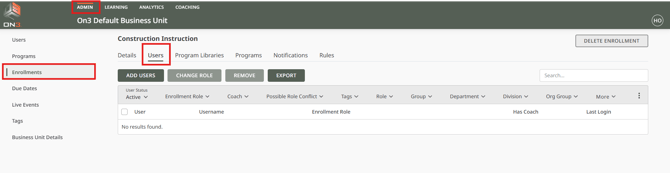
4. Go to the Users Tab
Inside the Enrollment, click the Users tab.
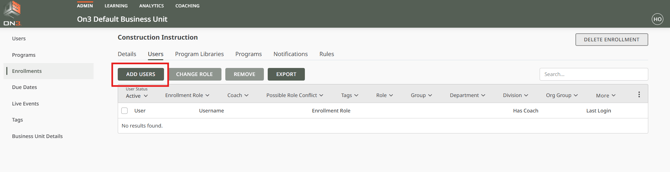
5. Add Users
Click Add Users to open the user selection window.
6. Select Users
You may:
-
Select All users, or
-
Select users individually
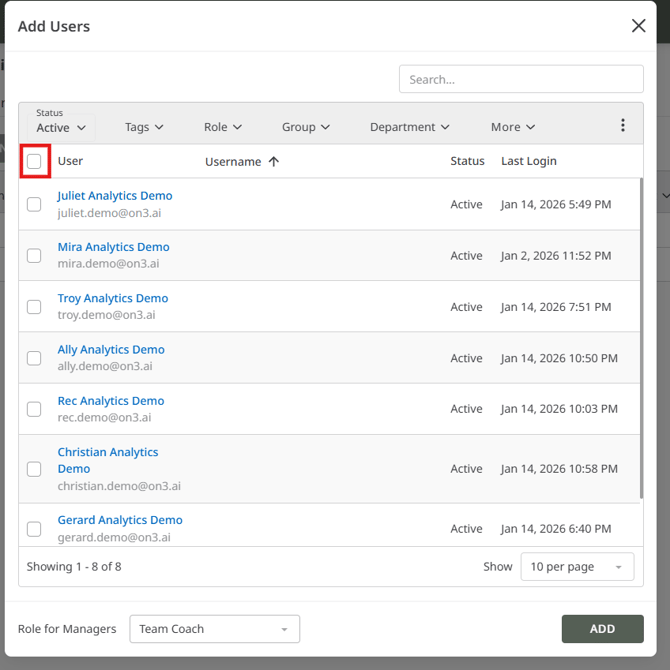
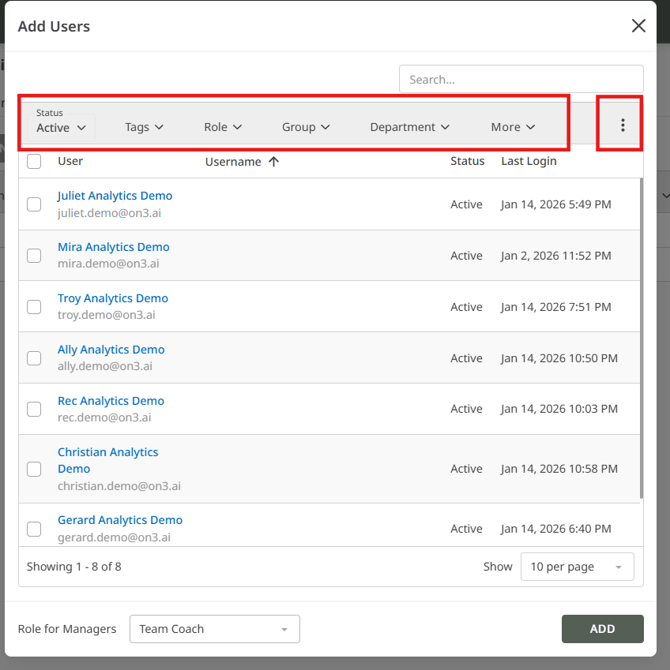
To help narrow your selection, the following filters are available (based on user profile data provided during registration):
-
Status (Active or Inactive)
-
Tags
-
Role
-
Group
-
Department
You can expand the filters to display additional data options as needed.
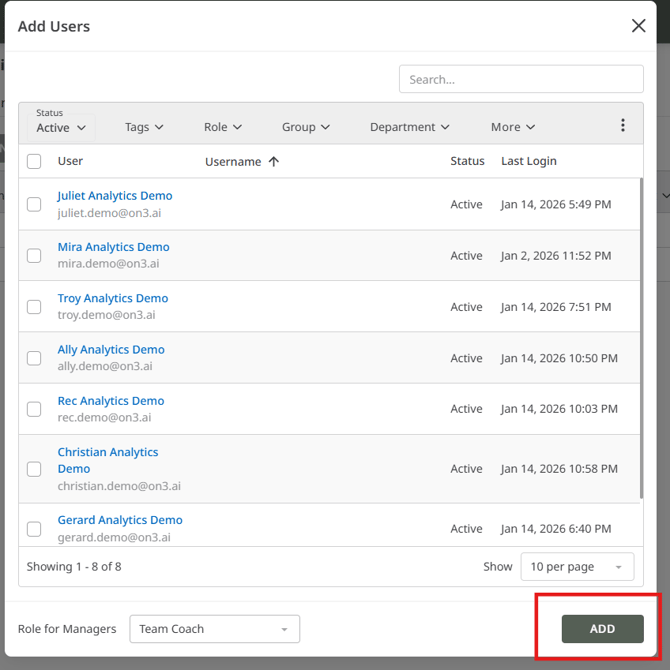
7. Confirm and Add
Once you’ve selected the users, click Add to complete the process.
That’s It!
The selected users are now added to the Enrollment and will have access to the programs associated with it through their Learning Portal and mobile app.
Summary
Adding users to an Enrollment allows you to:
-
Grant learners access to specific programs
-
Manage learning by team, role, or department
-
Quickly assign training at scale using filters