
On3 Learn allows admins to enrich a user’s profile by adding supplementary information that supports reporting, organization, and user management. These fields are especially useful for filtering, grouping, and identifying users across your business unit. Follow the steps below to update or add additional information to any user record.
Step-by-Step Guide
1. Log in to On3 Learn
Use your Admin username and password to sign in.
2. Go to the Admin Tab
From the top navigation bar, click Admin, then select Users.
3. Search for the User
Use the Search Box to quickly locate the user you want to update.

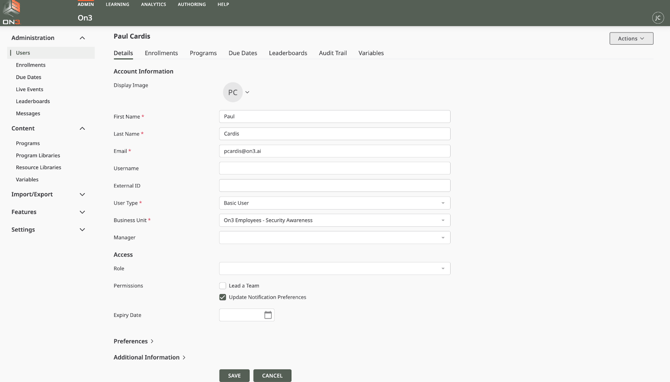
4. Add or Update Additional Information
Scroll down to the section labeled Additional Information.
Here, you can fill out or edit any available fields—most of which help improve searchability and reporting accuracy.
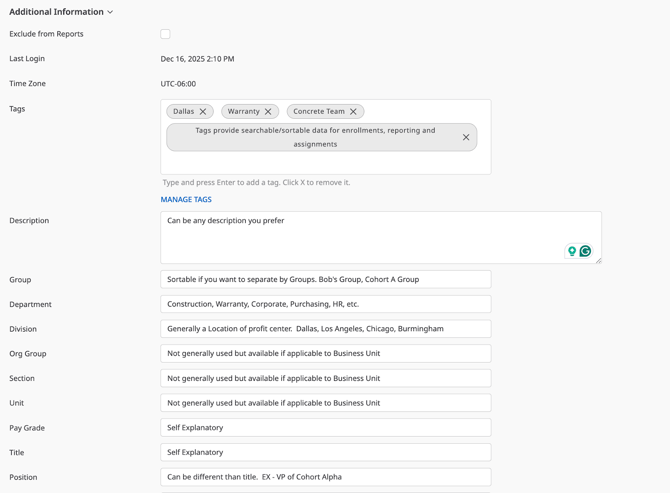
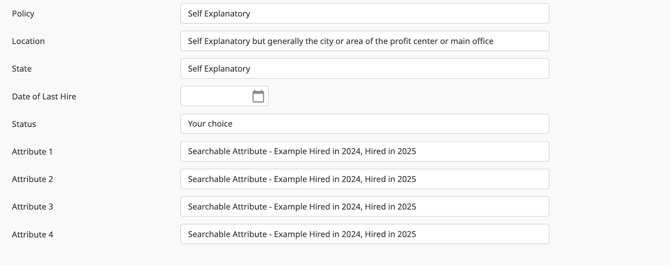
5. Save Your Changes
Once all updates are complete, click SAVE to apply the changes.

Why Additional Information Matters
Adding extra details to user records helps your organization:
-
Generate more accurate reports
-
Filter or group learners by role, team, or location
-
Track compliance and performance more easily
-
Manage enrollments and assignments efficiently
Keeping user information complete and up to date ensures smooth administration within On3 Learn.
Related Article
If you are creating a user for the first time, refer to this guide before adding additional information:
This article walks you through creating a new user account before enriching their profile with additional details.