
Content Connect
Content Connect is the web-based authoring environment for managing, editing, and producing structured learning content. It supports all workflows related to creating training materials from PDFs and videos captured in the field. It is also a place where all of the videos captured by your team via On3 AI mobile app are stored by default. It is a cloud based environment keeping your content safe and secure.
Download On3 AI app by following the links below.


When you log in, you land on the Content Connect homepage, which provides direct access to the two primary authoring actions: Create Course and AskOn3.
1. Homepage Overview

The homepage includes two primary buttons:
-
Create Course
These options allow you to start generating training or testing AskOn3 responses directly in your web browser.
2. Create Course
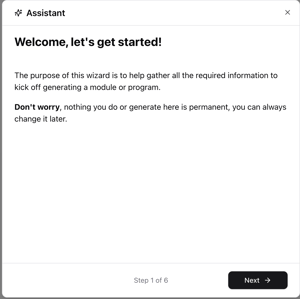
The Create Course workflow allows you to upload PDFs or videos and convert them into structured training modules using On3 AI technology.
Supported Content Types
-
PDF files
-
Video files
How On3 AI Processes Content
On3 AI will:
-
Analyze the uploaded material
-
Apply the correct learner persona
-
Extract Learning Objectives
-
Identify key Primers
-
Generate Flashcards
-
Produce Knowledge Checks
-
Create coaching information and tone alignment
This allows teams to generate structured training in minutes instead of hours or days.
3. Programs
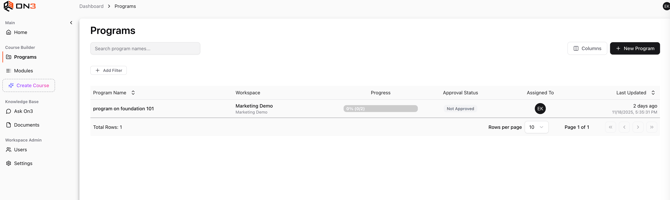
Programs allow you to group modules together into a structured learning path.
What Programs Are
-
Programs are collections of modules
-
They help deliver training in a sequenced, instructional manner
-
Each program can contain multiple modules (Module 1, 2, 3, 4, etc.)
-
Programs break down a broader subject into manageable, consistent learning pieces
Programs ensure content is:
-
Organized
-
Sequential
-
Easy to understand
-
Suitable for self-paced learning
4. Modules
Modules represent one specific learning topic inside On3.
A module provides structured information through:
-
Learning Objectives
-
Primers
-
Flashcards
-
Knowledge Checks
-
Coaching notes and tone guidance
Modules follow micro-learning best practices and keep content short, visual, and digestible.
5. Definitions of Learning Components
Content Connect uses consistent terminology for learning elements.
Below are the definitions used throughout the platform.
Learning Objectives
-
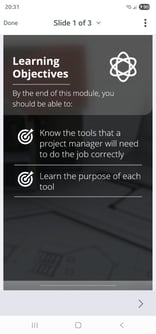
The introduction slide shown inside the On3 Learn application
-
Identifies what the learner will go through in the module
-
Typically 5–8 objectives
-
The system generates objective suggestions automatically
Learning objectives help learners understand what they will gain from the module before starting.
Primers
-
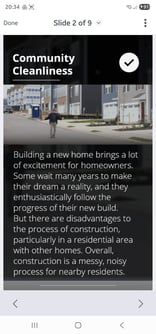
Core teaching moments inside the module
-
Represent the key concepts or steps of the process
-
Strongly recommended to include visual aids
-
Visual memory helps learners recall concepts when watching video demonstrations
Primers form the backbone of the learning experience.

Flashcards
-
Provide gamified reinforcement of important concepts
-
Encourage quick recall as learners advance through material
-
Support spaced repetition and micro-learning patterns
Flashcards help learners lock in the core ideas.
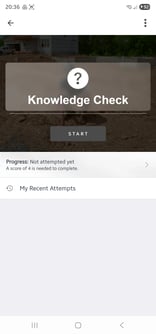
Knowledge Checks
-
Questions generated to validate learner understanding
-
Appear at the end of the module
-
Reinforce the learning objectives
-
Ensure comprehension before progressing
Knowledge checks close the loop between training and confidence.
6. Video Length Guidance (Micro-Learning)
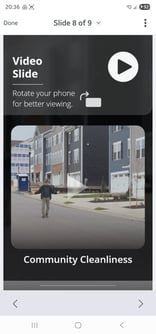
To keep modules effective:
-
Use short videos (3–6 minutes ideally)
-
Maximum recommended video length is 15 minutes
-
Shorter videos help learners focus on individual concepts
-
Aligns with micro-learning patterns and improves recall
Modules are most effective when concepts are broken into small, digestible segments.
7. AskOn3 (Web Version)
The AskOn3 button on the homepage allows you to:
-
Start a new AskOn3 conversation in your browser
-
Test responses based on indexed documents and modules
-
Validate content before deploying it to the field
This helps ensure your knowledge base is producing accurate and useful answers.
8. Knowledge Base Navigation
The Knowledge Base in Content Connect includes two sub-sections:
AskOn3 allows you to test AI responses, while Document Management allows you to upload and index documents for use in AskOn3.
9. Workspace Admin Navigation
Workspace Admin includes two sections:
These are used to control user access, approval workflows, notifications, AI coaching behavior, and workspace branding.